HomeNext Gen IT-InfraMonitoring & ManagementCyber SecurityBCP / DRAutomationDecoded
Next Gen IT-Infra
Cato’s SASE Supports Cybersecurity Skills Development

How Cato’s SASE Supports Cybersecurity Skills Development

🕓 April 8, 2025

How SASE Supports the Security Needs of SMBs

How SASE Supports the Security Needs of SMBs

🕓 February 9, 2025

Attack Surface Reduction with Cato’s SASE

Attack Surface Reduction with Cato’s SASE

🕓 February 10, 2025

SASE for Digital Transformation in UAE

SASE for Digital Transformation in UAE

🕓 February 8, 2025

Monitoring & Management
Understanding Atera’s SLA Management

Understanding Atera’s SLA Management

🕓 February 7, 2025

Cost-Performance Ratio: Finding the Right Balance in IT Management Networks

Cost-Performance Ratio: Finding the Right Balance in IT Management Networks

🕓 June 16, 2025

Customizing Atera with APIs

Customizing Atera with APIs

🕓 March 3, 2025

Power Up Your IT Team’s Strategy with Atera’s Communication Tools

Power Up Your IT Team’s Strategy with Atera’s Communication Tools

🕓 February 8, 2025

Cyber Security
Visual guide showing Cato CMA interface for configuring Internet and WAN firewall rules, enabling threat protection, and monitoring security events in real time for UAE IT teams.

Enforcing Firewall and Threat Protection Policies in Cato

🕓 July 25, 2025

Isometric illustration of professionals managing network performance, bandwidth analytics, and cloud-based optimization around the Cato Networks platform, symbolizing bandwidth control and QoS visibility.

Mastering Bandwidth Control and QoS in Cato Networks

🕓 July 26, 2025

Illustration of the Cato Cloud architecture showing its role in delivering SASE for secure, optimized global connectivity.

Understanding the Cato Cloud and Its Role in SASE

🕓 January 29, 2025

Global network backbone powering Cato SASE solution for secure, high-performance connectivity across regions.

Global Backbone: The Engine Powering Cato’s SASE Solution

🕓 January 30, 2025

BCP / DR
Illustration showing diverse business and IT professionals collaborating with cloud, backup, and security icons, representing Vembu use cases for SMBs, MSPs, and IT teams.

Who Uses Vembu? Real-World Use Cases for SMBs, MSPs & IT Teams

🕓 July 12, 2025

Graphic showcasing Vembu’s all-in-one backup and disaster recovery platform with icons for cloud, data protection, and business continuity for IT teams and SMBs.

What Is Vembu? A Deep Dive Into the All in One Backup & Disaster Recovery Platform

🕓 July 6, 2025

Illustration showing Vembu backup and disaster recovery system with cloud storage, server racks, analytics dashboard, and IT professionals managing data.

The Rising Cost of Data Loss: Why Backup Is No Longer Optional?

🕓 August 14, 2025

3D isometric illustration of cloud backup and data recovery infrastructure with laptop, data center stack, and digital business icons — FSD Tech

RPO & RTO: The Heart of Business Continuity

🕓 August 15, 2025

Automation
Cross-Functional Collaboration with ClickUp

Fostering Cross-Functional Collaboration with ClickUp for Multi-Departmental Projects

🕓 February 11, 2025

ClickUp Project Reporting

Revolutionizing Enterprise Reporting with ClickUp’s Advanced Analytics and Dashboards

🕓 June 16, 2025

ClickUp’s Design Collaboration and Asset Management Tools

Empowering Creative Teams with ClickUp’s Design Collaboration and Asset Management Tools

🕓 February 26, 2025

ClickUp Communication and Collaboration Tools

ClickUp Communication and Collaboration Tools: Empowering Remote Teams

🕓 March 12, 2025

Decoded
Multi-Factor Authentication (MFA)

Multi-Factor Authentication (MFA): All You Need to Know

🕓 December 7, 2025

L3 Switch

What Is an L3 Switch? L2 vs L3 & Why You Need Layer 3?

🕓 December 8, 2025

IPSec

IPSec Explained: Protocols, Modes, IKE & VPN Security

🕓 December 3, 2025

 Datagram Transport Layer Security (DTLS)

What is Datagram Transport Layer Security (DTLS)? How it works?

🕓 December 4, 2025

    Subscribe to our newsletter!

    About Us

    Follow Us

    Copyright © 2024 | Powered by 

    Cato SASE Architecture

    Inside Cato’s SASE Architecture: A Blueprint for Modern Security

    🕓 January 26, 2025

    Enterprise Data Security and Privacy with ClickUp

    Ensuring Enterprise Data Security and Privacy with ClickUp

    🕓 February 9, 2025

    DDoS protection SASE

    DDoS Protection and Cato’s Defence Mechanisms

    🕓 February 11, 2025

    Table of Contents

    Integrating ClickUp with Google Workspace for Streamlined Collaboration

    NHAIF NOUSHAD
    January 15, 2026
    Comments
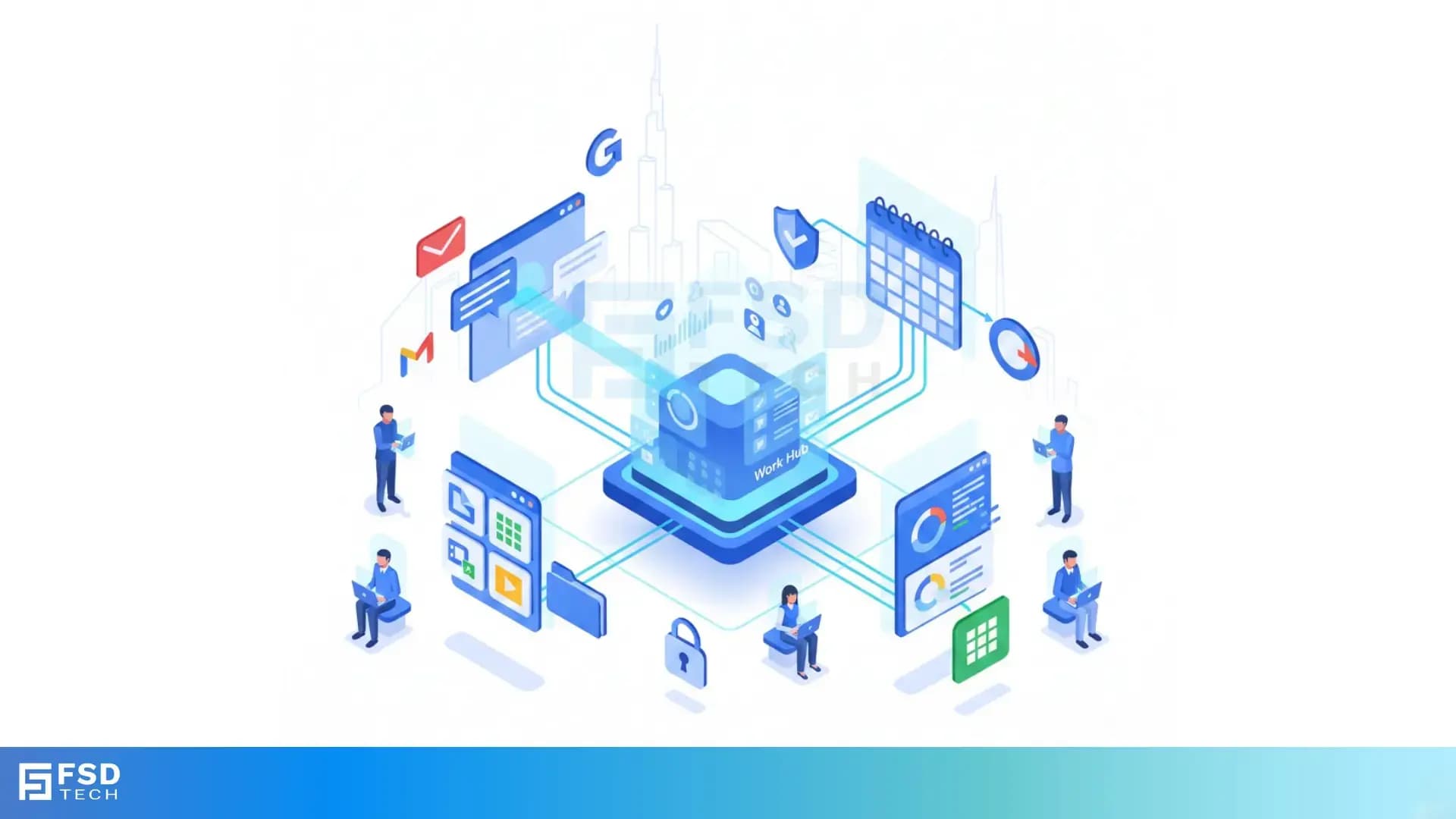
    Illustration of ClickUp integrated with Google Workspace tools like Gmail, Google Drive, Calendar, and Sheets, enabling real-time collaboration, task automation, secure access, and centralized workflows.

    Key Takeaways

    • Centralize hybrid team workflows:  Integrating ClickUp with Google Workspace unifies tasks, meetings, and documents, streamlining project management for UAE-based and remote teams.
    • Convert emails to actionable tasks:  Use the ClickUp Chrome Extension to turn Gmail messages into ClickUp tasks, ensuring client requests and support tickets are never missed.
    • Manage Drive files within tasks:  Attach, preview, and create Google Drive files directly in ClickUp, enabling seamless documentation and collaborative editing for all team members.
    • Sync calendars for deadline clarity:  Two-way ClickUp–Google Calendar sync keeps project deadlines and meetings aligned, reducing scheduling conflicts and improving time management.
    • Export data for advanced reporting:  Export ClickUp data to Google Sheets for custom dashboards and analytics, supporting data-driven decision-making for project leads.
    • Maintain security and compliance:  Role-based access control and secure integration protocols help UAE organizations meet regional compliance and protect sensitive information.


    Introduction

    Project managers and IT leads in Dubai and across the UAE face the challenge of managing distributed teams, hybrid work environments, and multiple digital tools. Fragmented workflows—scattered between project management platforms, email, file storage, and calendars—lead to inefficiencies and missed opportunities for collaboration. Integrating ClickUp with Google Workspace addresses these challenges by creating a connected productivity hub, where tasks, documents, and communications are unified for streamlined collaboration.


    Why Integration Matters for UAE Hybrid Teams

    Hybrid and remote work are now standard across the UAE, especially for organizations managing cross-functional teams and complex projects. The need for centralized visibility into tasks, documents, and meetings is critical for maintaining project momentum and accountability. By integrating ClickUp with Google Workspace, UAE-based teams can:

    • Eliminate app-switching and manual data entry.
    • Ensure all project information is accessible in one place.
    • Support compliance and data security requirements relevant to the GCC region.
    • Enable seamless collaboration across time zones and office locations.


    Overview of ClickUp and Google Workspace

    Core Features of Each Platform

    • ClickUp: 

    Comprehensive project management, including tasks, docs, reminders, goals, calendars, scheduling, and inbox—all in one customizable platform.

    • Google Workspace: 

    Cloud-based productivity suite with Gmail (email), Drive (file storage), Docs, Sheets, Slides (collaborative documents), and Calendar (scheduling).

    Common Collaboration Challenges

    • Communication silos between email, chat, and project tools.
    • Difficulty tracking document versions and access permissions.
    • Missed deadlines due to disconnected calendars.
    • Redundant manual updates across platforms.
    • Security and compliance risks from unmanaged file sharing.


    Key Integration Benefits

    Centralized Task and Communication Hub

    Integrating ClickUp with Google Workspace allows teams to manage tasks, access documents, and schedule meetings from a single platform. This centralization reduces inefficiencies, ensures everyone is working from the latest information, and supports hybrid teams who rely on remote collaboration.

    Seamless Gmail Task Creation

    With the ClickUp Chrome Extension, users can convert Gmail emails directly into actionable ClickUp tasks. Each task can include due dates, assignees, and priorities. This is especially valuable for teams handling client requests, support tickets, or approvals—ensuring that important communications are always tracked and actionable.

    Unified Google Drive File Management

    ClickUp’s Google Drive integration enables users to:

    • Attach Drive files to tasks and comments.
    • Preview documents without leaving ClickUp.
    • Create new Google Docs, Sheets, and Slides directly from within ClickUp.
    • Search and access shared Drive files across the workspace, supporting unified document management.

    This streamlines collaborative editing and ensures all project files are organized and accessible.

    Calendar Sync for Meetings and Deadlines

    ClickUp tasks can be synced to Google Calendar, offering both one-way and two-way synchronization. Project managers and team members can view tasks alongside meetings and events, improving time management and reducing scheduling conflicts. This is particularly useful for UAE teams coordinating across multiple departments or locations.

    Advanced Reporting with Google Sheets

    Teams can export ClickUp data to Google Sheets for:

    • Custom reporting and dashboards.
    • Performance analysis and resource tracking.
    • Data-driven decision-making beyond ClickUp’s native reporting.

    This flexibility is essential for project leads who require tailored analytics and insights.


    Step-by-Step Integration Guide

    Enabling Google Workspace Integrations in ClickUp

    1. Log in to ClickUp: 

    Access your ClickUp workspace using your credentials.

    2. Navigate to Integrations: 

    Click your profile avatar, select “Apps” or “Integrations” from the menu.

    3. Select Google Workspace Apps: 

    Choose the Google app you want to integrate (Gmail, Drive, or Calendar).

    4. Authorize Access: 

    Follow the prompts to grant ClickUp permission to access your Google account. Ensure you are using the correct Google Workspace account for your organization.

    Setting Up Gmail, Drive, and Calendar Sync

    • Gmail Integration: 
      • Install the ClickUp Chrome Extension from the Chrome Web Store.
      • Open any email in Gmail and click the ClickUp logo to convert it into a task.
      • Add details such as assignee, due date, and priority before saving.
    • Google Drive Integration: 
      • Within any ClickUp task or comment, click the attachment icon and select Google Drive.
      • Attach existing files, or create new Docs, Sheets, or Slides directly from ClickUp.
      • Set file permissions as needed to control access.
    • Google Calendar Integration: 
      • In ClickUp, go to your profile settings and select “Calendar Sync.”
      • Choose one-way or two-way sync with your Google Calendar.
      • Map ClickUp Spaces or Lists to specific calendars for granular control.

    Workspace vs. Personal Account Connections

    • Personal Connections: 

    Allow individual users to attach and search their own Drive files within ClickUp.

    • Workspace Connections: 

    Enable all team members to access and search shared Drive files, supporting broader collaboration and unified document management.


    Real-World Use Cases

    Example 1: Dubai Marketing Team Managing Campaigns

    A marketing team in Dubai is launching a new campaign. The campaign brief is stored in Google Docs, budgets are managed in Sheets, and creative assets are organized in Drive. By attaching these files to ClickUp tasks, every team member has instant access to the latest documents. Calendar sync ensures campaign deadlines align with team meetings, and Gmail integration turns client feedback into actionable tasks—keeping the campaign on track from ideation to launch.

    Example 2: UAE Consultancy Handling Client Requests

    A consultancy firm in the UAE receives client requests via Gmail. Using the ClickUp Chrome Extension, consultants convert these emails into ClickUp tasks, assign responsibilities, and attach relevant Drive files. This process ensures client communications are organized, deliverables are tracked, and nothing falls through the cracks—critical for maintaining high service standards in a competitive market.

    Example 3: HR Teams Streamlining Onboarding

    HR teams in the UAE use ClickUp to create onboarding task lists, link Drive folders with policy documents, and schedule interviews via Google Calendar. All onboarding steps, documents, and meeting invites are accessible in one place, simplifying the process for both HR staff and new hires. This unified approach accelerates onboarding and ensures compliance with company policies.


    Best Practices and Common Pitfalls

    Standardizing Templates and Permissions

    • Use task templates: 

    Create standardized task templates in ClickUp that include Drive file attachments for recurring workflows (e.g., onboarding, campaign launches).

    • Adopt naming conventions: 

    Use consistent file and folder naming conventions to keep documents organized and easy to find.

    • Review permissions regularly: 

    Ensure Drive file permissions are set appropriately before attaching to tasks, and review them periodically to maintain security.

    • Schedule recurring reminders: 

    Use Calendar sync to set up recurring tasks and reminders, keeping teams on track.

    Avoiding Duplicate Events and Task Clutter

    • Prevent duplicate calendar events: 

    Avoid syncing the same ClickUp task list to multiple calendars to prevent duplicate events.

    • Manage access issues: 

    Confirm that all team members have the necessary permissions to view or edit attached Drive files.

    • Convert only actionable emails: 

    Only turn actionable emails into ClickUp tasks to prevent clutter and maintain task list clarity.


    Security and Compliance Considerations

    Integrating ClickUp with Google Workspace supports secure credential storage and role-based access control (RBAC). Workspace admins can manage who accesses shared files and integrations, ensuring sensitive documents and data remain protected. This is especially important for organizations in regulated industries or those needing to comply with regional data protection laws in the UAE and GCC.

    • Secure protocols: 

    All integrations use secure authentication and encrypted connections.

    • Granular access control: 

    Admins can restrict access to specific files, folders, or integrations.

    • Compliance support: 

    Integration settings can be configured to align with local data residency and privacy requirements.


    Turn emails, documents, and meetings into actionable workflows → Book your 30-minute ClickUp integration strategy call today.
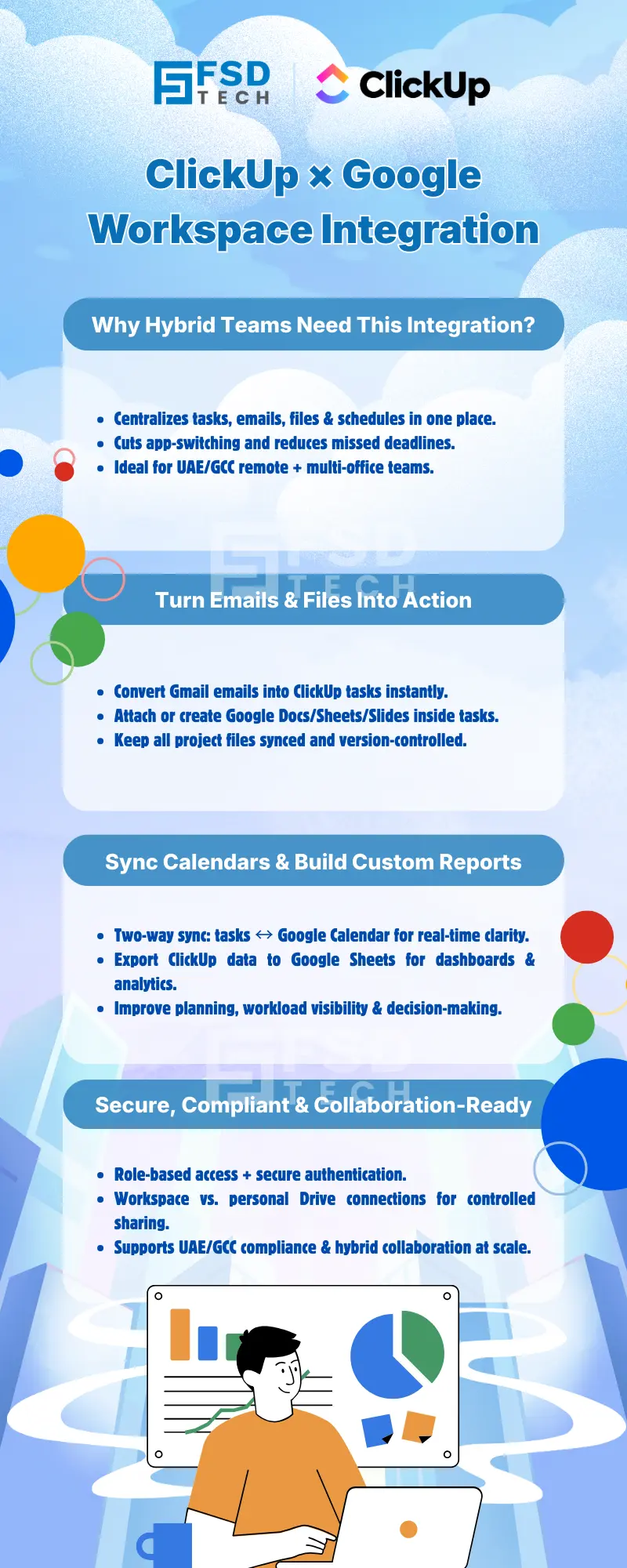
     

    Infographic explaining ClickUp and Google Workspace integration, showing how hybrid teams centralize tasks, emails, files, calendars, and reporting with secure, UAE/GCC-compliant collaboration.


    FAQ

    Can I attach Google Drive files to ClickUp tasks?

    Yes, you can attach, preview, and even create new Google Drive files directly from ClickUp tasks. This streamlines document management and ensures all relevant files are accessible within your workflow.


    How do I turn Gmail emails into ClickUp tasks?

    Install the ClickUp Chrome Extension, open an email in Gmail, and use the ClickUp logo to create a task. The extension automatically pulls in the email content, and you can assign the task, set a due date, and add details before saving.


    Is calendar sync between ClickUp and Google Calendar two-way?

    ClickUp supports both one-way and two-way sync with Google Calendar. This means updates in either platform can be reflected in the other, keeping tasks and events aligned for all team members.


    Who controls access to shared Drive files in ClickUp?

    Workspace admins manage access permissions for shared Drive files attached to ClickUp tasks. This ensures only authorized users can view or edit documents, supporting compliance and data security.


    Is the ClickUp–Google Workspace integration secure?

    Yes, integrations use secure authentication protocols and support role-based access control (RBAC). This helps organizations in the UAE maintain compliance and protect sensitive data.


    Can I create new Google Docs, Sheets, or Slides from ClickUp?

    Yes, you can create new Google Docs, Sheets, and Slides directly from within ClickUp tasks. This allows teams to start new documents without leaving the project management environment.


    How does the integration help with reporting and analytics?

    ClickUp allows you to export data to Google Sheets, enabling advanced reporting, custom dashboards, and performance analysis. This is especially useful for project leads who need flexible, data-driven insights.


    What’s the difference between personal and workspace Drive connections in ClickUp?

    Personal connections let users attach and search their own Drive files. Workspace connections allow all team members to access shared Drive files, supporting unified document management and collaboration.


    Are there best practices for naming files and tasks when integrating ClickUp with Google Workspace?

    Yes, adopting consistent naming conventions for files and tasks helps keep your workspace organized and makes it easier to search and manage documents across both platforms.


    How do I avoid duplicate calendar events when syncing ClickUp with Google Calendar?

    Ensure you are not syncing the same ClickUp task list to multiple calendars. Review your sync settings regularly to prevent duplicate events and maintain a clear schedule.


    Can I limit which team members have access to specific Google Drive files in ClickUp?

    Yes, file permissions set in Google Drive are respected when files are attached to ClickUp tasks. Workspace admins can further manage access through ClickUp’s sharing settings.


    What should I do if a team member can’t access an attached Drive file in ClickUp?

    Check the file’s sharing permissions in Google Drive and ensure the user has the appropriate access. You may need to update sharing settings or use a workspace connection for broader access.


    How does ClickUp support compliance with UAE or GCC data protection laws?

    ClickUp’s integration with Google Workspace supports secure access controls and encrypted data transfers. Admins can configure settings to align with local compliance requirements, ensuring data privacy and protection.


    Can I automate task creation in ClickUp from recurring Gmail emails?

    While the Chrome Extension enables manual conversion of emails to tasks, you can use automation tools (like Zapier) to create rules for recurring emails, further streamlining your workflow.


    How do I manage integration settings for a large, distributed team?

    Workspace admins can centrally manage integration settings, permissions, and access controls within ClickUp. This ensures consistent configuration and security across all users, which is especially important for large UAE-based organizations.


    What are common pitfalls to avoid when integrating ClickUp with Google Workspace?

    Common pitfalls include creating duplicate calendar events, attaching Drive files without proper permissions, and converting non-actionable emails into tasks. Regularly review integration settings and educate your team on best practices to avoid these issues.


    How does ClickUp’s integration benefit hybrid teams in the Middle East?

    ClickUp’s integration with Google Workspace enables hybrid teams in the Middle East to collaborate seamlessly, centralize project information, and maintain compliance with regional data regulations. This supports efficient operations across distributed offices and remote work environments.


    Can I revoke Google Workspace integration access from ClickUp if needed?

    Yes, you can disconnect Google Workspace integrations from your ClickUp settings at any time. This immediately revokes access and helps maintain security if team members change roles or leave the organization.


    Does ClickUp offer support for troubleshooting integration issues?

    ClickUp provides comprehensive support resources, including help center articles and customer support, to assist with integration setup and troubleshooting. This ensures UAE teams can resolve issues quickly and maintain productivity.


    How can I ensure my ClickUp–Google Workspace integration remains up to date?

    Regularly review ClickUp’s release notes and Google Workspace updates. Stay informed about new features, security enhancements, and best practices to ensure your integration remains secure and effective.


    Is there a limit to the number of Google accounts I can connect to ClickUp?

    ClickUp allows you to connect multiple Google accounts, but it’s best to follow organizational guidelines and connect only the accounts necessary for your team’s workflows. Workspace admins can manage these connections for optimal security and efficiency.

    Integrating ClickUp with Google Workspace for Streamlined Collaboration

    About The Author

    NHAIF NOUSHAD

    Nhaif is an AI Automation Engineer & Business Analyst focused on ClickUp, AI, Automation, and Workflow Optimization. He helps businesses shift from scattered processes to streamlined, data-driven operations. With hands-on expertise, he simplifies complex tools into clear, easy-to-apply solutions.

    Like This Story?

    Share it with friends!

    Subscribe to our newsletter!

    Atera

    (48)

    Cato Networks

    (113)

    ClickUp

    (70)

    FishOS

    (7)

    Miradore

    (21)

    PointGuard AI

    (9)

    Vembu

    (22)

    Xcitium

    (33)

    ZETA HRMS

    (71)

    Workflow Automation(8)

    Workforce Automation(1)

    AI Project Management(1)

    HR Data Automation(1)

    RMM(1)

    IT Workflow Automation(1)

    IT security(2)

    GCC compliance(4)

    Payroll Integration(2)

    IT support automation(3)

    procurement automation(1)

    lost device management(1)

    IT Management(5)

    IoT Security(2)

    Cato XOps(2)

    IT compliance(4)

    Task Automation(1)

    Workflow Management(1)

    Kubernetes lifecycle management(2)

    AI-powered cloud ops(1)

    OpenStack automation(1)

    SMB Security(8)

    Data Security(1)

    MDR (Managed Detection & Response)(4)

    MSP Automation(3)

    Atera Integrations(2)

    XDR Security(2)

    SMB Cyber Protection(1)

    Ransomware Defense(3)

    HR Tech Solutions(1)

    Zero Trust Network Access(3)

    Zero Trust Security(2)

    Endpoint Management(1)

    SaaS Security(1)

    Payroll Automation(5)

    IT Monitoring(2)

    Xcitium EDR SOC(15)

    Ransomware Protection GCC(1)

    M&A IT Integration(1)

    Network Consolidation UAE(1)

    MSSP for SMBs(1)

    FSD-Tech MSSP(25)

    Antivirus vs EDR(1)

    SMB Cybersecurity GCC(1)

    Ransomware Protection(3)

    Managed EDR FSD-Tech(1)

    Cybersecurity GCC(12)

    Endpoint Security(1)

    Data Breach Costs(1)

    Endpoint Protection(1)

    Zero Dwell Containment(31)

    Managed Security Services(2)

    Xcitium EDR(30)

    SMB Cybersecurity(8)

    Cloud Backup(1)

    Hybrid Backup(1)

    Backup & Recovery(1)

    pointguard ai(4)

    backup myths(1)

    vembu(9)

    SMB data protection(9)

    disaster recovery myths(1)

    Vembu BDR Suite(19)

    Disaster Recovery(4)

    DataProtection(1)

    GCCBusiness(1)

    Secure Access Service Edge(4)

    GCC HR software(16)

    Miradore EMM(15)

    Cato SASE(7)

    Cloud Security(8)

    Talent Development(1)

    AI Cybersecurity(12)

    AI Security(2)

    AI Governance(4)

    AI Risk Management(1)

    AI Compliance(2)

    GCC business security(1)

    GCC network integration(1)

    compliance automation(4)

    education security(1)

    GCC cybersecurity(2)

    Miradore EMM Premium+(5)

    BYOD security Dubai(8)

    App management UAE(1)

    HealthcareSecurity(1)

    MiddleEast(1)

    Team Collaboration(1)

    IT automation(12)

    Zscaler(1)

    SD-WAN(6)

    HR Integration(4)

    Cloud Networking(3)

    device management(9)

    RemoteWork(1)

    ZeroTrust(2)

    VPN(1)

    MPLS(1)

    Project Management(9)

    HR automation(16)

    share your thoughts

    Illustration of ClickUp integrated with Google Workspace tools like Gmail, Google Drive, Calendar, and Sheets, enabling real-time collaboration, task automation, secure access, and centralized workflows.

    Integrating ClickUp with Google Workspace for Streamlined Collaboration

    🕓 January 15, 2026

    Illustration showing ClickUp connected with Slack and Microsoft Teams, enabling real-time collaboration, automated task creation, secure workflows, and centralized communication for distributed teams.

    Using ClickUp with Slack & Teams: Real-Time Workflow Automation

    🕓 January 10, 2026

    ClickUp and Power BI integration infographic showing automated client reporting, real-time dashboards, secure API-based data sync, and compliance-focused analytics for UAE and GCC service providers.

    Powering Client Reports with ClickUp + Power BI Integration

    🕓 January 6, 2026

    Decoded(66)

    Cyber Security(112)

    BCP / DR(22)

    Zeta HRMS(70)

    SASE(21)

    Automation(70)

    Next Gen IT-Infra(113)

    Monitoring & Management(69)

    ITSM(22)

    HRMS(21)

    Automation(24)