.webp&w=3840&q=75)
How ClickUp Enables Outcome-Based Project Management (Not Just Task Tracking)
🕓 February 15, 2026

ClickUp project management is a robust and flexible platform designed to improve task management, collaboration, and project tracking for teams of all sizes. It combines automation, customizable workflows, real-time communication, and insightful reporting—all in one central workspace intended to boost productivity and simplify project work.
This article explores ClickUp's features, benefits, practical tips for use, and common questions to provide a helpful guide for project managers and teams aiming to enhance their project management with ClickUp.
ClickUp is a cloud-based project management tool built to bring all aspects of managing projects into one easy-to-use platform. It supports everything from simple task tracking to complex workflow automation, making it ideal for teams across different industries like software development, marketing, design, and more.
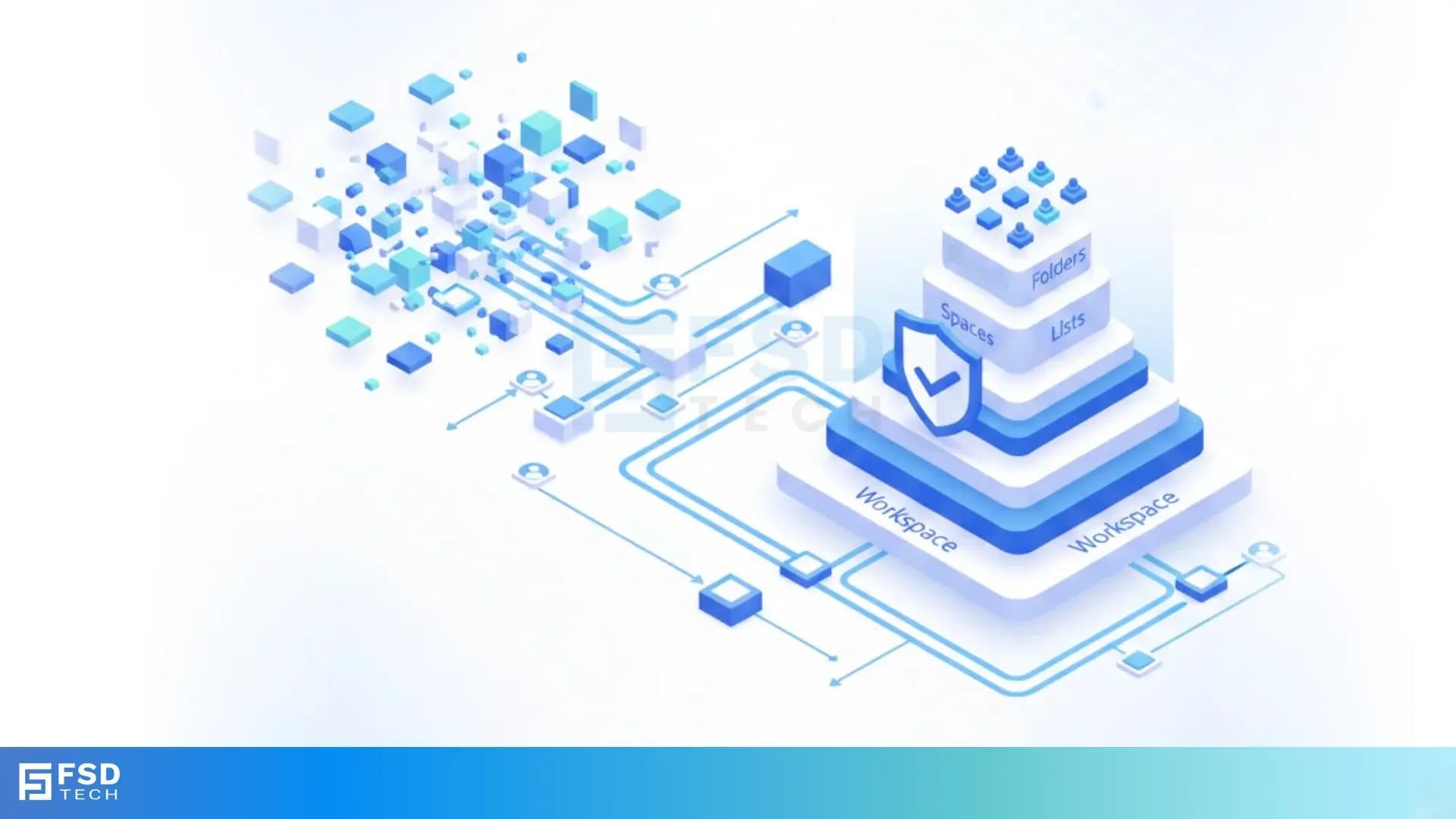
The tool offers a hierarchical task structure with folders, lists, tasks, and subtasks, helping break down complex projects into manageable parts. It covers project planning, task assignment, time tracking, progress visualizations, and team collaboration all at once.
ClickUp offers a wide range of features within its interface. Understanding these features helps you determine if the platform meets your needs.
Task management is the backbone of any project tool. ClickUp excels in this area with various ways to organize work. You can create tasks with subtasks, checklists, dependencies, and priorities.
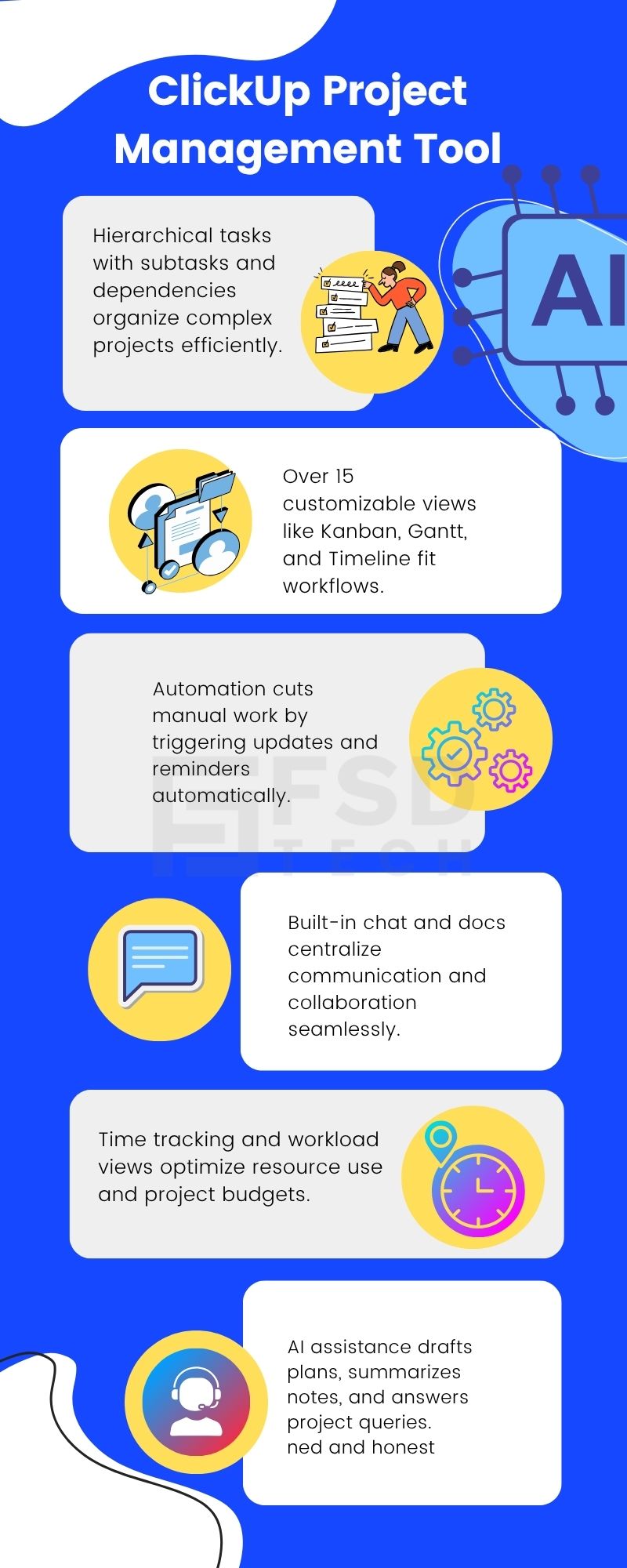
Assign multiple team members to collaborate on single tasks. The platform provides over 15 different views to see your work. List view gives you simple task lists. Board view resembles Kanban cards. You can track your tasks and deadlines effectively with ClickUp's straightforward task and time management tools. Timeline view presents Gantt charts for detailed project planning.
Calendar view offers a visual display of deadlines. This variety matters because teams work differently. Some prefer lists; others need visual boards. Project managers often like Gantt charts. ClickUp allows each person to choose their preferred view while using the same data.
Documentation lives inside ClickUp alongside tasks. You can create detailed documents with formatting, embeds, and task connections. Unlike separate document tools, these documents link directly to your projects.
If you reference a task in your document, it updates automatically. The built-in chat feature connects conversations to work. You can create chats for different purposes, similar to Microsoft Teams, making communication easy. Thread discussions under specific tasks. Tag teammates to get their attention. Keep all communication in context rather than scattered across email and messaging apps.
Whiteboards provide space for brainstorming. You can draw diagrams, create mind maps, and visualize ideas together. Convert whiteboard elements directly into tasks, bridging the gap between planning and execution.
Repetitive work drains productivity. ClickUp's automation builder takes care of routine tasks automatically. Set triggers and actions to move cards, assign tasks, update statuses, and send notifications without manual effort. The platform offers preset automations for common workflows.
Automatically assign tasks when a status changes. Send reminders before deadlines. Update custom fields based on conditions. You can also build custom automations tailored to your specific processes.
However, the automation interface can feel overwhelming. The number of choices does seem a bit much. Automation building can be one of the tougher tasks in project management software. Teams need time to learn the system before they can effectively build complex automations.
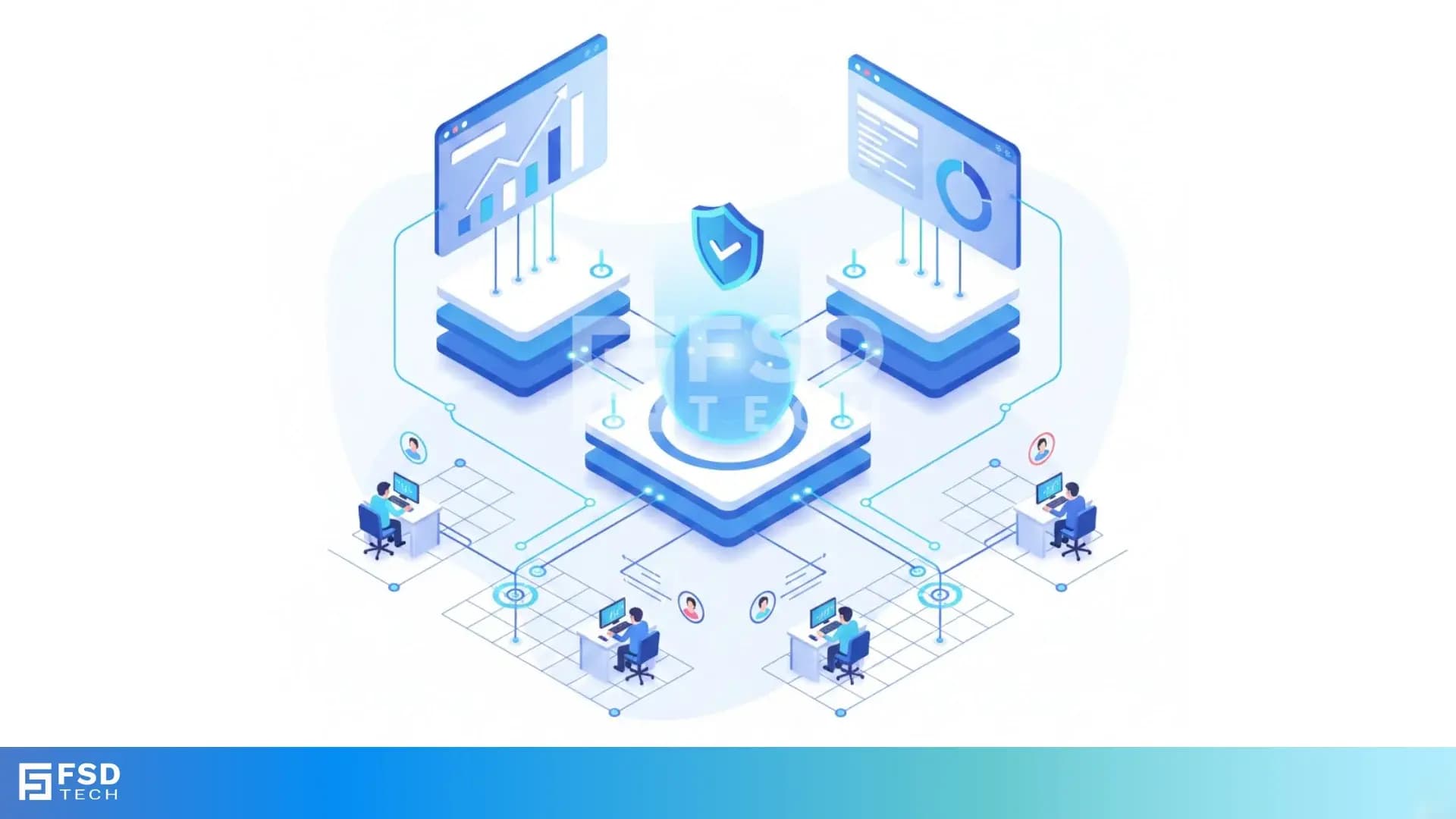
Data visibility leads to better decisions. ClickUp's dashboards show project metrics through customizable widgets. Track task completion rates, team workload, time spent, and custom metrics.
You will have the ability to use preset charts and widgets to display project data professionally. Create multiple dashboards for different audiences. Executives see high-level summaries, project managers track detailed metrics, and team members monitor their personal workload.
The flexibility ensures that everyone gets relevant information. Real-time updates keep dashboards current. Changes to tasks immediately appear in reports. No more waiting for manual updates or refreshing static reports. Your data remains accurate automatically.
Artificial intelligence boosts productivity across ClickUp. ClickUp AI allows your team to focus on impactful work by drafting project plans, capturing meetings, and setting priorities. The AI assistant generates task descriptions, suggests subtasks, and creates templates based on your needs.
ClickUp Brain answers questions about your workspace. You can ask about project status, deadlines, or task assignments. The AI searches your data and provides relevant answers. This saves time from manually digging through tasks and documents.
For an additional fee, ClickUp Brain adds AI features to any paid plan. ClickUp Brain acts as a virtual project manager by organizing and tracking tasks, projects, and team updates. This investment is worthwhile for teams wanting to maximize automation and reduce manual work.
Also Read: How to Train Your Team on ClickUp Using Internal Docs & Automation
ClickUp project management is a robust and flexible platform designed to improve task management, collaboration, and project tracking for teams of all sizes. It combines automation, customizable workflows, real-time communication, and insightful reporting—all in one central workspace intended to boost productivity and simplify project work.
This article explores ClickUp's features, benefits, practical tips for use, and common questions to provide a helpful guide for project managers and teams aiming to enhance their project management with ClickUp.
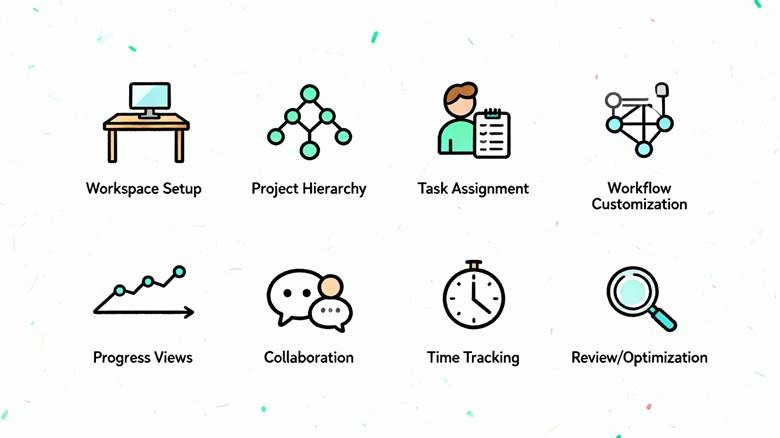
Step 1: Setup Your Workspace and Teams
Start by creating a workspace tailored to your organization. Invite team members and assign roles and permissions based on their responsibilities. The workspace serves as the central hub for all projects.
Step 2: Create Projects and Organize Hierarchically
Break your initiatives into projects. Within each project, create folders and lists to group tasks by phases, teams, or features. This structured hierarchy keeps your workspace organized and manageable.
Step 3: Add and Assign Tasks
Create tasks with clear titles and descriptions. Attach relevant documents and images. Assign tasks to the appropriate team members with deadlines and priorities to ensure accountability.
Step 4: Customize Workflows and Statuses
Define custom statuses that fit your project stages, such as Backlog, In Progress, Review, or Completed. Automate task transitions based on triggers to reduce manual updates.
Step 5: Use Views to Monitor Progress
Take advantage of boards for Kanban-style management or Gantt charts for timeline visualization. Use the Workload view to balance team capacity and avoid overloading any member.
Step 6: Collaborate and Communicate
Use comments and mentions within tasks to clarify questions and updates. Share documents and notes in real-time to keep everyone in sync.
Step 7: Track Time and Generate Reports
Enable time tracking on tasks to monitor effort and productivity. Use reports and dashboards to analyze progress, budget adherence, and upcoming deadlines.
Step 8: Review and Optimize
Regularly check project status and adjust task assignments or timelines as needed to stay on track. Use automation insights to continually improve workflows.
ClickUp project management combines versatility, automation, and strong collaboration features to change how teams plan, execute, and deliver projects. Its customizable views, AI-driven tools, and powerful task management capabilities help streamline workflows and increase productivity.
Whether you are managing a small team or scaling up complex projects, ClickUp provides a single platform that can adjust to various workflows, making it a top choice for modern project management needs.
Ready to automate your team training with ClickUp? Schedule a no-obligation call with Our Expert Now.
What types of projects can ClickUp manage?
ClickUp supports all project types—from software development, marketing campaigns, and event planning to personal task management—thanks to its flexible hierarchy and custom workflows.
Is ClickUp suitable for remote teams?
Yes. Its real-time collaboration tools, centralized communication, and cloud accessibility make it perfect for remote and hybrid teams.
Can I integrate ClickUp with other tools?
ClickUp integrates with over 1,000 third-party apps, including Slack, Zapier, Google Workspace, and CRM systems, enabling seamless data flow across platforms.
Is there a free version of ClickUp?
ClickUp offers a free version with core features ideal for personal use and small teams. Paid plans provide advanced automation, more storage, and enterprise-grade controls.
How does ClickUp handle task dependencies?
You can link tasks with dependencies, so ClickUp notifies you if a task delay affects others, helping manage project timelines effectively.

Surbhi Suhane is an experienced digital marketing and content specialist with deep expertise in Getting Things Done (GTD) methodology and process automation. Adept at optimizing workflows and leveraging automation tools to enhance productivity and deliver impactful results in content creation and SEO optimization.
Share it with friends!


.webp&w=3840&q=75)


share your thoughts