HomeNext Gen IT-InfraMonitoring & ManagementCyber SecurityBCP / DRAutomationDecoded
Next Gen IT-Infra
Cato’s SASE Supports Cybersecurity Skills Development

How Cato’s SASE Supports Cybersecurity Skills Development

🕓 April 8, 2025

How SASE Supports the Security Needs of SMBs

How SASE Supports the Security Needs of SMBs

🕓 February 9, 2025

Attack Surface Reduction with Cato’s SASE

Attack Surface Reduction with Cato’s SASE

🕓 February 10, 2025

SASE for Digital Transformation in UAE

SASE for Digital Transformation in UAE

🕓 February 8, 2025

Monitoring & Management
Understanding Atera’s SLA Management

Understanding Atera’s SLA Management

🕓 February 7, 2025

Cost-Performance Ratio: Finding the Right Balance in IT Management Networks

Cost-Performance Ratio: Finding the Right Balance in IT Management Networks

🕓 June 16, 2025

Customizing Atera with APIs

Customizing Atera with APIs

🕓 March 3, 2025

Power Up Your IT Team’s Strategy with Atera’s Communication Tools

Power Up Your IT Team’s Strategy with Atera’s Communication Tools

🕓 February 8, 2025

Cyber Security
Illustration of the Cato Cloud architecture showing its role in delivering SASE for secure, optimized global connectivity.

Understanding the Cato Cloud and Its Role in SASE

🕓 January 29, 2025

Isometric illustration of professionals managing network performance, bandwidth analytics, and cloud-based optimization around the Cato Networks platform, symbolizing bandwidth control and QoS visibility.

Mastering Bandwidth Control and QoS in Cato Networks

🕓 July 26, 2025

Global network backbone powering Cato SASE solution for secure, high-performance connectivity across regions.

Global Backbone: The Engine Powering Cato’s SASE Solution

🕓 January 30, 2025

Illustration of team analyzing application traffic and usage insights on a large laptop screen using Cato’s dashboard, surrounded by network and cloud icons.

Cato Networks Application Visibility | Monitoring & Control

🕓 July 27, 2025

BCP / DR
Illustration showing diverse business and IT professionals collaborating with cloud, backup, and security icons, representing Vembu use cases for SMBs, MSPs, and IT teams.

Who Uses Vembu? Real-World Use Cases for SMBs, MSPs & IT Teams

🕓 July 12, 2025

Graphic showcasing Vembu’s all-in-one backup and disaster recovery platform with icons for cloud, data protection, and business continuity for IT teams and SMBs.

What Is Vembu? A Deep Dive Into the All in One Backup & Disaster Recovery Platform

🕓 July 6, 2025

Illustration showing Vembu backup and disaster recovery system with cloud storage, server racks, analytics dashboard, and IT professionals managing data.

The Rising Cost of Data Loss: Why Backup Is No Longer Optional?

🕓 August 14, 2025

3D isometric illustration of cloud backup and data recovery infrastructure with laptop, data center stack, and digital business icons — FSD Tech

RPO & RTO: The Heart of Business Continuity

🕓 August 15, 2025

Automation
Cross-Functional Collaboration with ClickUp

Fostering Cross-Functional Collaboration with ClickUp for Multi-Departmental Projects

🕓 February 11, 2025

ClickUp Project Reporting

Revolutionizing Enterprise Reporting with ClickUp’s Advanced Analytics and Dashboards

🕓 June 16, 2025

ClickUp’s Design Collaboration and Asset Management Tools

Empowering Creative Teams with ClickUp’s Design Collaboration and Asset Management Tools

🕓 February 26, 2025

ClickUp Communication and Collaboration Tools

ClickUp Communication and Collaboration Tools: Empowering Remote Teams

🕓 March 12, 2025

Decoded
Multi-Factor Authentication (MFA)

Multi-Factor Authentication (MFA): All You Need to Know

🕓 December 7, 2025

L3 Switch

What Is an L3 Switch? L2 vs L3 & Why You Need Layer 3?

🕓 December 8, 2025

IPSec

IPSec Explained: Protocols, Modes, IKE & VPN Security

🕓 December 3, 2025

 Datagram Transport Layer Security (DTLS)

What is Datagram Transport Layer Security (DTLS)? How it works?

🕓 December 4, 2025

    Subscribe to our newsletter!

    About Us

    Follow Us

    Copyright © 2024 | Powered by 

    Atera

    (55)

    Cato Networks

    (121)

    ClickUp

    (78)

    FishOS

    (7)

    Miradore

    (21)

    PointGuard AI

    (9)

    Vembu

    (22)

    Xcitium

    (33)

    ZETA HRMS

    (79)

    Table of Contents

    Building Smart Workflows Using ClickUp Automations + AI Triggers

    NHAIF NOUSHAD
    December 1, 2025
    Comments
    Isometric illustration of AI-powered workflow automation with digital dashboards, robotic arms, analytics, and connected devices representing ClickUp’s smart automation ecosystem.

    Key Takeaways

    • Accelerate workflow design with AI triggers:  Leverage ClickUp Brain and natural language automation to rapidly prototype and deploy advanced workflows without extensive manual setup.
    • Enable self-updating projects:  Combine automations and AI-driven conditions to create intelligent task flows that escalate, reassign, and summarize work based on real-time project data.
    • Integrate seamlessly with external tools:  Connect ClickUp automations to platforms like GitHub, HubSpot, and Twilio for cross-system process optimization and unified project visibility.
    • Personalize automations with custom fields:  Use variables and custom fields to tailor actions to specific departments, priorities, or project types, ensuring workflows remain context-aware and dynamic.
    • Proactively manage tasks with time-based triggers:  Schedule automations for regular updates, follow-ups, and escalations, reducing manual oversight and improving project reliability.
    • Deploy with confidence using robust testing tools:  Utilize ClickUp’s workflow builder to test, troubleshoot, and map fields, ensuring automations perform as intended before going live.
       

    Introduction

    Why Smart Workflows Matter for IT Admins and Project Architects

    In modern IT and project management environments—especially across UAE-based operations and GCC-compliant organizations—manual task handling is no longer sustainable. Teams require intelligent, self-updating workflows that adapt to shifting priorities and ensure accountability. Smart automation not only reduces repetitive work but also unlocks proactive management, streamlined escalations, and seamless cross-platform integration.

    Overview: ClickUp Automations + AI Triggers

    ClickUp Automations, enhanced by AI triggers, empower IT admins and project architects to build workflows that react, adapt, and optimize themselves. By combining event-based triggers, AI-driven actions, and integration with external systems, you can create robust, scalable processes that keep projects on track—without constant manual intervention.
     

    Core Concepts of ClickUp Automations

    Triggers, Actions, and Conditions Explained

    At the foundation of every ClickUp automation are three essential components:

    • Triggers: The event that initiates the automation (e.g., a task is created, a status changes, or a comment is added).
    • Actions: The steps that follow the trigger (e.g., assign a task, change its status, send a notification).
    • Conditions: Optional filters that ensure actions only occur when specific criteria are met (e.g., escalate only if priority is high or department is “IT”).

    Example: When a task is marked as high priority, assign it to the lead and set a due date for 2 days from now. 

    This structure allows for granular control, ensuring automations are both powerful and precise.

    Automation Templates vs. Custom Automations

    ClickUp provides two primary approaches for building automations:

    • Automation Templates:  Pre-built recipes for common scenarios, such as onboarding, escalation, or recurring updates. These templates can be quickly customized to fit your workspace needs.
    • Custom Automations:  Build from scratch by selecting specific triggers, actions, and conditions. This approach is ideal for unique or complex workflows, such as multi-stage escalations or department-specific processes.

    Admins often start with templates for rapid deployment and then evolve toward custom automations as requirements become more sophisticated.
     

    Leveraging AI Triggers for Intelligent Workflow Design

    Natural Language Automation with ClickUp Brain

    ClickUp Brain introduces natural language automation, allowing admins to describe desired workflows in plain English. The AI interprets your instructions and configures the appropriate triggers, actions, and conditions.

    Example: “When a new high-priority bug is reported, assign it to the lead developer and set a due date for 24 hours from now.” 

    The AI automatically:

    • Sets the trigger (bug reported)
    • Applies the condition (high priority)
    • Defines the actions (assign, set due date)

    This approach dramatically reduces setup time and lowers the barrier to implementing complex automations, especially for teams managing large-scale or regionally distributed projects.

    Building Autopilot Agents for Self-Updating Projects

    With the AI Agent Plugin, ClickUp enables the creation of Autopilot Agents—automation bots that monitor projects, update statuses, and escalate issues based on real-time data.

    How to build an Autopilot Agent: 

    1. Access the Autopilot Agent Builder in your ClickUp workspace.

    2. Define the trigger:  For example, a status change or a new comment.

    3. Set conditions:  Such as only acting on high-priority tasks or specific departments.

    4. Specify actions:  Reassign tasks, post AI-generated summaries, or notify stakeholders.

    Use Case: 

    If a task remains “In Progress” for more than 3 days, the Autopilot Agent escalates it to a manager, posts a summary update, and sends a Slack notification.

    These agents are particularly valuable for GCC-compliant organizations needing to maintain audit trails and ensure timely escalations across distributed teams.


    Also Read: How to Build a Simple CRM in ClickUp That Actually Works for Small Teams
     

    Automation Recipes: Real-World Examples

    Automated Escalations for Overdue Tasks

    Scenario: 

    A task remains “In Progress” for more than 3 days.

    Automation Setup: 

    •  Trigger: Task status remains “In Progress” for 3 days.
    •  Condition: Priority is high.
    •  Actions: Reassign to manager, post summary update, send Slack notification.

    Benefit: 

    Ensures critical tasks are never overlooked, supporting proactive project management across UAE and Middle East deployments.

    AI-Generated Task Summaries and Assignments

    Scenario: 

    A new project is created.

    Automation Setup: 

    • Trigger: New project task created.
    • Actions: AI generates a checklist of subtasks based on project type, assigns them according to the department field, and posts a summary in the project channel.

    Benefit: 

    Accelerates project kickoff and ensures all stakeholders have immediate clarity on deliverables.

    Integrating External Tools (GitHub, HubSpot, Twilio)

    Scenario: 

    A bug is reported in Bugsnag.

    Automation Setup: 

    • Trigger: New error detected in Bugsnag.
    • Actions: Create a ClickUp task, link it to the relevant developer, and sync status with the corresponding GitHub issue.

    Benefit: 

    Enables seamless cross-platform visibility and action, reducing manual data entry and ensuring that external events trigger immediate responses within ClickUp.
     

    Advanced Process Optimization Strategies

    Using Custom Fields and Variables for Personalization

    Custom fields (e.g., priority, department, client) and variables allow automations to be highly personalized and context-aware.

    Example: 

    Assign tasks based on the “Department” field, or use AI to generate summaries that incorporate custom field data.

    Implementation Tips: 

    • Use variables to dynamically reference task attributes in notifications or AI-generated summaries.
    • Filter automations by custom fields to ensure only relevant tasks are affected.

    This approach is especially useful for large organizations with multiple departments or region-specific processes.

    Time-Based and Scheduled Automations

    ClickUp supports both time-based triggers and scheduled automations, enabling proactive management without manual oversight.

    Examples: 

    • Scheduled Update:  Every Monday, AI posts a summary of overdue tasks and upcoming deadlines in the project channel.
    • Time-Based Trigger:  If a task is overdue by 2 days, escalate to the project lead and notify the team.

    Benefit: 

    Ensures regular communication, timely follow-ups, and reduces the risk of missed deadlines—critical for high-stakes projects in regulated industries.
     

    Implementation Best Practices

    Testing, Troubleshooting, and Field Mapping

    Reliable automation deployment requires thorough testing and validation:

    • Test triggers: Use ClickUp’s workflow builder to simulate events and confirm that automations fire as expected.
    • Field mapping: Ensure all fields (especially custom ones) are correctly mapped to avoid misrouted tasks or incomplete updates.
    • Troubleshooting:  Review logs and automation histories to diagnose issues before going live.

    Tip: 

    Always test automations in a staging environment before deploying to production, particularly when integrating with external APIs or handling sensitive data.

    Security and Permissions Considerations

    • Respect workspace permissions:  Ensure automations only perform actions users are authorized to execute.
    • Limit sensitive actions:  Restrict escalations, external integrations, and data exports to trusted admins.
    • Audit automation activity:  Regularly review automation logs to maintain compliance with regional data protection standards (e.g., GCC, UAE regulations).


    Optimize UAE & GCC Operations with Smart ClickUp Workflows→ Talk to Our Implementation Specialists.
     

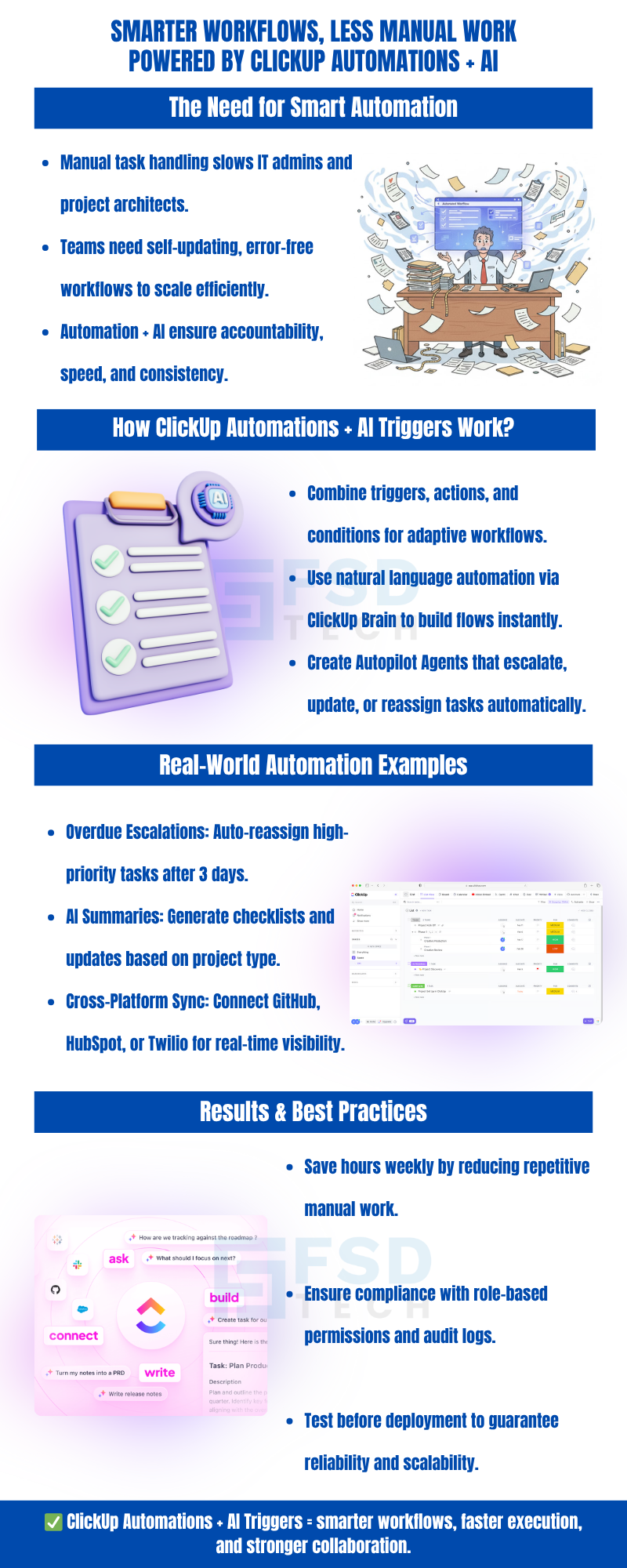
    nfographic showing how ClickUp Automations and AI Triggers streamline workflows, reduce manual tasks, and improve team efficiency across IT and project operations.


    FAQ

    What are the main benefits of combining ClickUp Automations with AI triggers?

    Combining automations with AI triggers enables self-updating projects, reduces manual intervention, and ensures proactive task management. This approach helps IT admins and project architects maintain project momentum, automate escalations, and deliver consistent results, especially in fast-paced or regionally distributed teams.
     

    Can I use natural language to set up automations in ClickUp?

    Yes, ClickUp Brain allows you to describe workflows in plain English. The AI interprets your instructions and builds the automation, including triggers, actions, and conditions. This feature accelerates workflow design and is particularly useful for rapid prototyping or onboarding new team members.
     

    How do I ensure automations only run under specific conditions?

    Use conditions and custom fields to filter when actions should occur. For example, you can set automations to trigger only for high-priority tasks or specific departments, ensuring that actions are relevant and targeted.
     

    What external tools can I integrate with ClickUp automations?

    ClickUp supports integrations with a wide range of external tools, including GitHub, HubSpot, Twilio, Bugsnag, and Calendly. These integrations allow automations to react to events in other systems, enabling cross-platform process optimization and unified workflow management.


    How do I test and troubleshoot automations before deploying?

    Use the workflow builder’s test trigger and field mapping features to validate automations. Simulate events, review logs, and ensure all actions execute as intended. This process helps prevent errors and ensures reliable automation in production environments.


    Can ClickUp automations handle scheduled or recurring tasks?

    Yes, automations can be scheduled to run at specific intervals (e.g., daily, weekly) or after certain time-based conditions are met (e.g., overdue tasks). This supports proactive project management and ensures regular updates without manual intervention.


    How do custom fields and variables enhance automation personalization?

    Custom fields and variables allow automations to adapt actions based on task attributes, such as department, client, or priority. This ensures workflows remain context-aware and relevant to each project’s unique requirements.


    What are some common automation recipes for IT teams?

    Common recipes include automated escalations for overdue tasks, AI-generated task checklists upon project creation, syncing bug reports from external tools, and scheduled status updates for project channels. These recipes streamline IT operations and improve cross-team visibility.


    How does ClickUp ensure security and compliance in automated workflows?

    ClickUp automations respect workspace permissions and user roles. Sensitive actions and integrations can be restricted to authorized admins, and automation logs provide an audit trail for compliance with regional standards such as those in the GCC and UAE.


    Can I automate multi-step processes involving several teams or departments?

    Yes, by using custom conditions and multi-action automations, you can build workflows that span multiple teams or departments. For example, tasks can be routed based on department fields, and escalations can trigger notifications to different stakeholders as needed.


    How does ClickUp support integration with regionally specific tools or workflows?

    ClickUp’s open API and integration capabilities allow connection with both global and regionally specific tools. This flexibility is valuable for Middle East deployments or organizations with unique compliance requirements.


    What is the difference between automation templates and custom automations?

    Automation templates are pre-built recipes for common scenarios, offering quick setup and easy customization. Custom automations are built from scratch, allowing for granular control over triggers, actions, and conditions—ideal for complex or unique workflows.


    How do I manage automation limits or quotas in ClickUp?

    ClickUp workspaces may have automation usage limits based on plan type. Monitor your automation usage in the workspace settings and optimize workflows to stay within quotas, especially when deploying high-frequency or resource-intensive automations.


    Are there best practices for documenting and maintaining automations?

    Maintain clear documentation for each automation, including its purpose, triggers, actions, and conditions. Regularly review and update automations to align with evolving project requirements and organizational policies.


    How can I leverage ClickUp automations for GCC compliance or UAE-based operations?

    ClickUp automations can be configured to support regional compliance by ensuring audit trails, restricting sensitive actions, and integrating with local tools. For UAE-based teams, automations can help enforce local project management standards and streamline cross-border collaboration.


    What troubleshooting steps should I take if an automation fails?

    First, review the automation log for errors or skipped actions. Check field mappings, permissions, and integration statuses. If issues persist, test the automation in isolation and consult ClickUp’s support resources for advanced troubleshooting.


    How can I ensure automations scale with my organization’s growth?

    Design automations with modularity and scalability in mind. Use variables, custom fields, and reusable templates. Regularly audit and optimize workflows to accommodate new teams, projects, or integration requirements as your organization expands.


    Can I restrict automation actions to specific users or roles?

    Yes, ClickUp allows you to set permissions for automations, ensuring that only authorized users can create, modify, or trigger sensitive actions. This is essential for maintaining security and compliance in large or distributed teams.


    How do AI-generated summaries improve project visibility?

    AI-generated summaries provide concise, real-time updates on project status, overdue tasks, and upcoming deadlines. This enhances transparency for stakeholders and supports informed decision-making, especially in complex or multi-regional projects.


    What’s the best way to start implementing smart workflows in ClickUp?

    Begin by mapping your key processes and identifying repetitive or high-impact tasks. Use ClickUp Brain to prototype automations with natural language, test thoroughly, and gradually expand to more complex workflows and integrations as your team’s needs evolve.

    Building Smart Workflows Using ClickUp Automations + AI Triggers

    About The Author

    NHAIF NOUSHAD

    Nhaif is an AI Automation Engineer & Business Analyst focused on ClickUp, AI, Automation, and Workflow Optimization. He helps businesses shift from scattered processes to streamlined, data-driven operations. With hands-on expertise, he simplifies complex tools into clear, easy-to-apply solutions.

    TRY OUR PRODUCTS

    Like This Story?

    Share it with friends!

    Subscribe to our newsletter!

    FishOSCato SASEVembuXcitiumZeta HRMSAtera
    Isometric illustration of a centralized performance platform connected to analytics dashboards and team members, representing goal alignment, measurable outcomes, risk visibility, and strategic project tracking within ClickUp.

    How ClickUp Enables Outcome-Based Project Management (Not Just Task Tracking)

    🕓 February 15, 2026
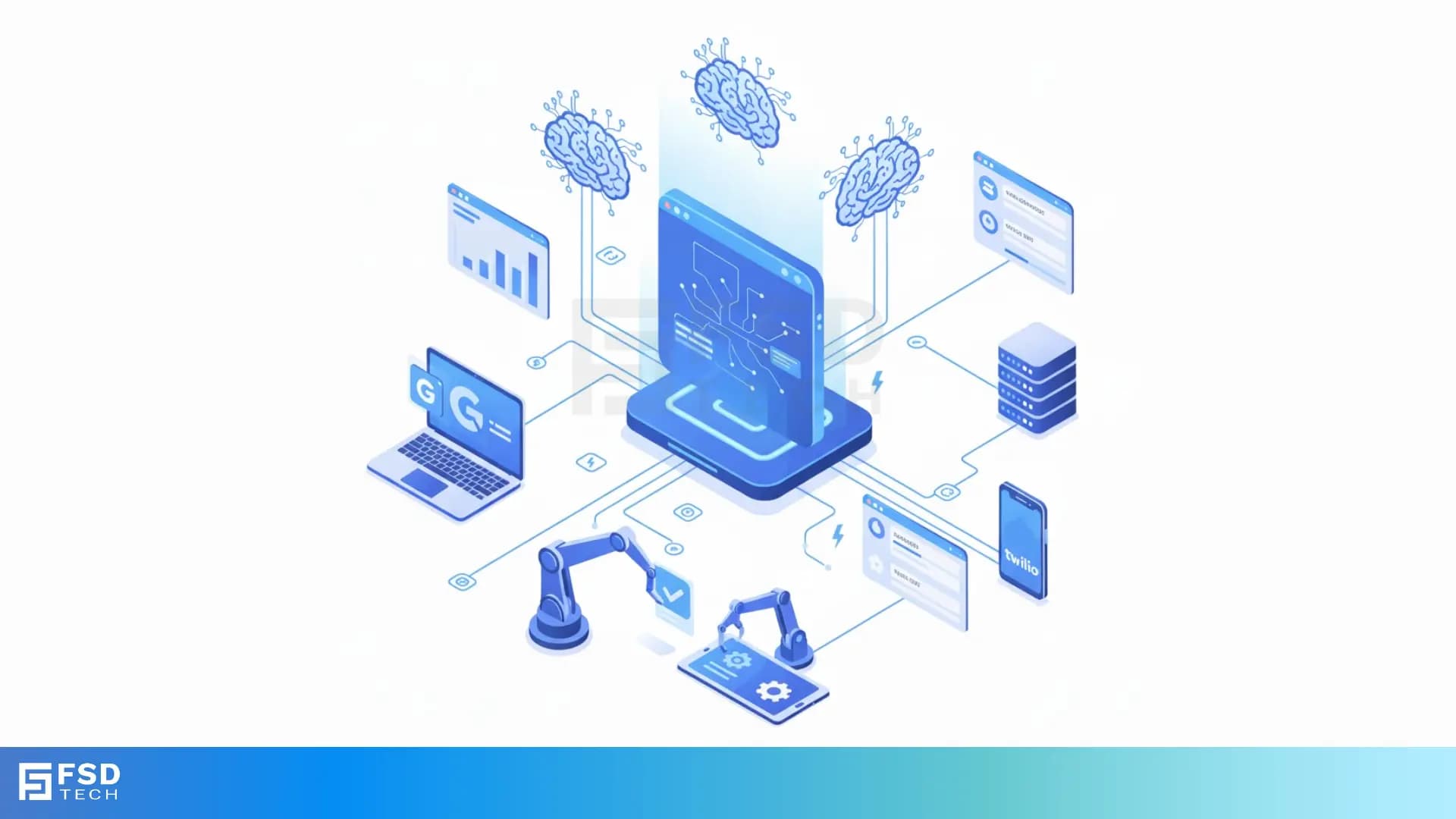
    Isometric illustration of a centralized executive dashboard platform connected to analytics panels, performance charts, security indicators, and strategic milestones, representing real-time business visibility and decision control within ClickUp.

    Executive Visibility in ClickUp – How CXOs Gain Real-Time Control Without Micromanaging

    🕓 February 13, 2026

    Cato SASE Architecture

    Inside Cato’s SASE Architecture: A Blueprint for Modern Security

    🕓 January 26, 2025

    Workflow Automation(8)

    Workforce Automation(1)

    AI Project Management(1)

    HR Data Automation(1)

    RMM(1)

    IT Workflow Automation(1)

    GCC compliance(4)

    IT security(2)

    Payroll Integration(2)

    IT support automation(3)

    procurement automation(1)

    lost device management(1)

    IT Management(5)

    IoT Security(2)

    Cato XOps(2)

    IT compliance(4)

    Task Automation(1)

    Workflow Management(1)

    Kubernetes lifecycle management(2)

    OpenStack automation(1)

    AI-powered cloud ops(1)

    SMB Security(8)

    Data Security(1)

    MDR (Managed Detection & Response)(4)

    MSP Automation(3)

    Atera Integrations(2)

    XDR Security(2)

    Ransomware Defense(3)

    SMB Cyber Protection(1)

    HR Tech Solutions(1)

    Zero Trust Network Access(3)

    Zero Trust Security(2)

    Endpoint Management(1)

    SaaS Security(1)

    Payroll Automation(5)

    IT Monitoring(2)

    Xcitium EDR SOC(15)

    Ransomware Protection GCC(1)

    Network Consolidation UAE(1)

    M&A IT Integration(1)

    MSSP for SMBs(1)

    FSD-Tech MSSP(25)

    Managed EDR FSD-Tech(1)

    SMB Cybersecurity GCC(1)

    Ransomware Protection(3)

    Antivirus vs EDR(1)

    Endpoint Security(1)

    Cybersecurity GCC(12)

    Data Breach Costs(1)

    Endpoint Protection(1)

    Xcitium EDR(30)

    Managed Security Services(2)

    SMB Cybersecurity(8)

    Zero Dwell Containment(31)

    Cloud Backup(1)

    Hybrid Backup(1)

    Backup & Recovery(1)

    pointguard ai(4)

    SMB data protection(9)

    backup myths(1)

    disaster recovery myths(1)

    vembu(9)

    Disaster Recovery(4)

    Vembu BDR Suite(19)

    DataProtection(1)

    GCCBusiness(1)

    GCC IT Solutions(1)

    Secure Access Service Edge(4)

    Unified Network Management(1)

    GCC HR software(20)

    CC compliance(1)

    open banking(1)

    financial cybersecurity(2)

    Miradore EMM(15)

    Government Security(1)

    Cato SASE(8)

    Hybrid Learning(1)

    Cloud Security(9)

    GCC Education(1)

    Talent Development(1)

    AI Risk Management(1)

    AI Compliance(2)

    AI Cybersecurity(12)

    AI Governance(4)

    AI Security(2)

    Secure Remote Access(1)

    GCC business security(1)

    GCC network integration(1)

    compliance automation(5)

    GCC cybersecurity(3)

    education security(1)

    BYOD security Dubai(8)

    Miradore EMM Premium+(5)

    App management UAE(1)

    MiddleEast(1)

    HealthcareSecurity(1)

    Team Collaboration(1)

    IT automation(12)

    Zscaler(1)

    SD-WAN(7)

    share your thoughts

    Isometric illustration of a centralized enterprise platform connecting analytics dashboards and distributed teams, representing structured governance, performance monitoring, and coordinated project execution across an organization.

    How PMOs Use ClickUp to Enforce Standards Without Slowing Teams Down

    🕓 February 21, 2026

    Infographic titled “Turning Work Chaos Into an Operating System,” explaining how ClickUp structures workflows through hierarchy, ownership, approvals, and repeatable processes to transform fragmented work into a scalable operating model with predictable execution and leadership visibility, branded by FSD Tech and ClickUp.

    From Chaos to Clarity: Designing an Operating Model Inside ClickUp

    🕓 February 19, 2026

    Isometric illustration of a centralized enterprise operations platform linking strategic planning, analytics dashboards, teams, and execution workflows, representing unified strategy alignment, real-time reporting, and coordinated business operations inside ClickUp.

    Using ClickUp to Bridge Strategy, Execution, and Reporting in One Platform

    🕓 February 17, 2026

    Decoded(123)

    Cyber Security(118)

    BCP / DR(22)

    Zeta HRMS(78)

    SASE(21)

    Automation(78)

    Next Gen IT-Infra(118)

    Monitoring & Management(76)

    ITSM(22)

    HRMS(21)

    Automation(24)