HomeNext Gen IT-InfraMonitoring & ManagementCyber SecurityBCP / DRAutomationDecoded
Next Gen IT-Infra
Cato’s SASE Supports Cybersecurity Skills Development

How Cato’s SASE Supports Cybersecurity Skills Development

🕓 April 8, 2025

How SASE Supports the Security Needs of SMBs

How SASE Supports the Security Needs of SMBs

🕓 February 9, 2025

Attack Surface Reduction with Cato’s SASE

Attack Surface Reduction with Cato’s SASE

🕓 February 10, 2025

SASE for Digital Transformation in UAE

SASE for Digital Transformation in UAE

🕓 February 8, 2025

Monitoring & Management
Understanding Atera’s SLA Management

Understanding Atera’s SLA Management

🕓 February 7, 2025

Cost-Performance Ratio: Finding the Right Balance in IT Management Networks

Cost-Performance Ratio: Finding the Right Balance in IT Management Networks

🕓 June 16, 2025

Customizing Atera with APIs

Customizing Atera with APIs

🕓 March 3, 2025

Power Up Your IT Team’s Strategy with Atera’s Communication Tools

Power Up Your IT Team’s Strategy with Atera’s Communication Tools

🕓 February 8, 2025

Cyber Security
Visual guide showing Cato CMA interface for configuring Internet and WAN firewall rules, enabling threat protection, and monitoring security events in real time for UAE IT teams.

Enforcing Firewall and Threat Protection Policies in Cato

🕓 July 25, 2025

Isometric illustration of professionals managing network performance, bandwidth analytics, and cloud-based optimization around the Cato Networks platform, symbolizing bandwidth control and QoS visibility.

Mastering Bandwidth Control and QoS in Cato Networks

🕓 July 26, 2025

Illustration of the Cato Cloud architecture showing its role in delivering SASE for secure, optimized global connectivity.

Understanding the Cato Cloud and Its Role in SASE

🕓 January 29, 2025

Global network backbone powering Cato SASE solution for secure, high-performance connectivity across regions.

Global Backbone: The Engine Powering Cato’s SASE Solution

🕓 January 30, 2025

BCP / DR
Illustration showing diverse business and IT professionals collaborating with cloud, backup, and security icons, representing Vembu use cases for SMBs, MSPs, and IT teams.

Who Uses Vembu? Real-World Use Cases for SMBs, MSPs & IT Teams

🕓 July 12, 2025

Graphic showcasing Vembu’s all-in-one backup and disaster recovery platform with icons for cloud, data protection, and business continuity for IT teams and SMBs.

What Is Vembu? A Deep Dive Into the All in One Backup & Disaster Recovery Platform

🕓 July 6, 2025

Illustration showing Vembu backup and disaster recovery system with cloud storage, server racks, analytics dashboard, and IT professionals managing data.

The Rising Cost of Data Loss: Why Backup Is No Longer Optional?

🕓 August 14, 2025

3D isometric illustration of cloud backup and data recovery infrastructure with laptop, data center stack, and digital business icons — FSD Tech

RPO & RTO: The Heart of Business Continuity

🕓 August 15, 2025

Automation
Cross-Functional Collaboration with ClickUp

Fostering Cross-Functional Collaboration with ClickUp for Multi-Departmental Projects

🕓 February 11, 2025

ClickUp Project Reporting

Revolutionizing Enterprise Reporting with ClickUp’s Advanced Analytics and Dashboards

🕓 June 16, 2025

ClickUp’s Design Collaboration and Asset Management Tools

Empowering Creative Teams with ClickUp’s Design Collaboration and Asset Management Tools

🕓 February 26, 2025

ClickUp Communication and Collaboration Tools

ClickUp Communication and Collaboration Tools: Empowering Remote Teams

🕓 March 12, 2025

Decoded
Multi-Factor Authentication (MFA)

Multi-Factor Authentication (MFA): All You Need to Know

🕓 December 7, 2025

L3 Switch

What Is an L3 Switch? L2 vs L3 & Why You Need Layer 3?

🕓 December 8, 2025

IPSec

IPSec Explained: Protocols, Modes, IKE & VPN Security

🕓 December 3, 2025

 Datagram Transport Layer Security (DTLS)

What is Datagram Transport Layer Security (DTLS)? How it works?

🕓 December 4, 2025

    Subscribe to our newsletter!

    About Us

    Follow Us

    Copyright © 2024 | Powered by 

    Cato SASE Architecture

    Inside Cato’s SASE Architecture: A Blueprint for Modern Security

    🕓 January 26, 2025

    Enterprise Data Security and Privacy with ClickUp

    Ensuring Enterprise Data Security and Privacy with ClickUp

    🕓 February 9, 2025

    DDoS protection SASE

    DDoS Protection and Cato’s Defence Mechanisms

    🕓 February 11, 2025

    Table of Contents

    How to Boost ClickUp Workspace Speed and Efficiency for Large Teams

    NHAIF NOUSHAD
    January 17, 2026
    Comments
    Illustration showing ClickUp as a central work management platform connected to dashboards, automations, security controls, and cross-functional teams to improve workspace performance and productivity at scale.

    Key Takeaways

    • Optimize hierarchy for UAE-scale operations:  Structuring ClickUp with clear Workspaces, Spaces, Folders, and Lists mirrors large organizational workflows and accelerates navigation for teams across the Middle East.
    • Standardize statuses and views for clarity:  Uniform task statuses and consistent views reduce confusion and speed up decision-making in high-volume, multi-department environments.
    • Archive and clean up regularly:  Routine archiving and automation cleanup prevent database bloat, maintaining peak workspace speed for enterprise teams managing thousands of tasks.
    • Audit automations for sustained performance:  Periodic automation reviews and consolidation eliminate bottlenecks, ensuring ClickUp performance remains robust as your team grows.
    • Leverage selective customization and integrations:  Enabling only essential ClickApps and integrations streamlines task optimization and minimizes unnecessary overhead in GCC-compliant deployments.
    • Control permissions for security and efficiency:  Granular access management reduces clutter and risk, supporting secure, efficient collaboration across UAE-based teams.


    Introduction: The Challenge of Scaling ClickUp for Enterprise Productivity

    For enterprise IT and operations managers in the UAE and broader GCC, scaling ClickUp across hundreds or thousands of users is both an opportunity and a challenge. As organizations grow, so does the complexity of their digital workspace - task volumes surge, automations multiply, and the risk of performance bottlenecks increases. Ensuring high ClickUp performance and workspace speed is essential for maintaining productivity, supporting compliance, and enabling rapid decision-making in fast-paced regional markets.
     

    This technical guide presents proven strategies to optimize ClickUp for large teams. From hierarchy tuning and archiving best practices to automation cleanup and advanced permission management, these recommendations are designed to help you deliver enterprise-grade efficiency and scalability.


    Understanding ClickUp’s Hierarchy

    Workspace, Spaces, Folders, Lists, and Tasks Explained

    ClickUp’s hierarchical structure is foundational to its scalability. Each level serves a distinct purpose:

    • Workspace: The top-level container, typically representing your entire organization.
    • Spaces: High-level categories, often mapped to departments or business units (e.g., HR, Finance, Operations).
    • Folders: Groupings of related projects, initiatives, or functions within each Space.
    • Lists: Collections of actionable items, such as project phases or recurring processes.
    • Tasks: The granular units of work, each with assignees, due dates, and custom fields.

    This hierarchy enables large teams to mirror their real-world structure within ClickUp, ensuring clarity and minimizing confusion.


    Example: 

    A UAE-based logistics provider might structure its ClickUp workspace as follows:
     

    LevelExample NameUse Case
    WorkspaceGulf Logistics GroupEntire organization
    SpaceOperations  Department-level segmentation
    FolderFleet ManagementProject grouping within Operations
    ListQ4 DeliveriesSpecific project or process
    TaskSchedule vehicle inspectionIndividual action item


    Real-World Example: Structuring for a 500-Person Operations Team

    CEMEX, a global construction materials company, centralized 50 team members in a single ClickUp workspace. By aligning their hierarchy with business functions and standardizing workflows, they reduced handoff times from hours to seconds and cut time-to-market by 15%. This approach is directly transferable to large UAE-based teams seeking similar gains in operational efficiency.


    Speed Optimization Strategies

    Standardizing Statuses and Views

    Inconsistent task statuses and fragmented views can slow down large teams. Standardizing statuses at the Folder or Space level ensures everyone follows the same workflow, reducing ambiguity and streamlining reporting.

    Implementation Steps: 

    • Define a core set of statuses (e.g., To Do, In Progress, Review, Done) for each Space or Folder.
    • Apply these statuses across all relevant Lists to maintain consistency.
    • Use color coding and naming conventions for rapid recognition.


    Views: 

    Utilize ClickUp’s multiple views - List, Board, Gantt, and Dashboard—to accommodate different team needs. For example, project managers may prefer Gantt View for scheduling, while agile teams use Board View for sprint planning.

    Archiving and Data Hygiene Best Practices

    Workspace speed can degrade as completed or obsolete items accumulate. Regular archiving is essential for maintaining optimal ClickUp performance.

    Best Practices: 

    • Schedule monthly or quarterly audits to identify tasks, Lists, and Folders ready for archiving.
    • Use bulk archive features to efficiently remove large volumes of completed items.
    • Archive entire Lists or Folders upon project completion, not just individual tasks.


    Tip: 

    Set up recurring reminders for admins to review and archive old data. This proactive approach prevents database bloat and sustains workspace speed.

    Automation Cleanup and Performance Tuning

    Automations drive efficiency but can also introduce latency if left unchecked. Large teams often accumulate redundant or outdated automations, which can slow down workspace responsiveness.

     Optimization Framework: 

    • Audit all active automations quarterly.
    • Disable or delete automations that are no longer relevant.
    • Consolidate similar triggers to minimize the total number of automations.
    • Use ClickUp’s automation logs to identify high-frequency or slow-performing rules.


    Case Insight: 

    A UAE enterprise with over 200 automations reduced processing delays by 30% after consolidating assignment triggers and removing outdated rules.

    Permission Management for Large Teams

    Granular permission management is critical for both security and usability. By assigning roles and restricting access, you reduce visual clutter and safeguard sensitive data.

    Action Steps: 

    • Segment teams using Spaces and Folders.
    • Assign roles (Admin, Member, Guest) based on responsibility and access needs.
    • Set Spaces as public or private according to sensitivity.
    • Review permissions regularly, especially after team changes or reorganization.


    Leveraging Customization and Integrations

    Enabling Only What You Need

    ClickUp’s extensive customization options—ClickApps, custom fields, and integrations—are powerful, but enabling too many features can slow down your workspace.

     Best Practices: 

    • Activate only the ClickApps essential to your workflows (e.g., Time Tracking, Custom Fields).
    • Periodically review and disable unused ClickApps.
    • Limit integrations to those that provide measurable value, such as Slack for notifications or Google Drive for document management.

    Integrating with Enterprise Tools

    Integrations can centralize communication and documentation, but over-integration creates unnecessary overhead.

    Example: 

    A UAE-based financial firm uses ClickUp’s integration with Google Drive for secure document storage and Slack for real-time notifications. This targeted approach streamlines collaboration without compromising workspace speed.


    Real-World Examples and Case Studies

    How CEMEX Reduced Handoff Times by 15% with ClickUp

    CEMEX’s experience demonstrates the impact of workspace optimization. By centralizing team members, standardizing task statuses, and implementing regular archiving and automation cleanup, they achieved:

    • 15% reduction in time-to-market
    • Handoff times reduced from hours to seconds
    • Enhanced cross-team collaboration and visibility

    These results are achievable for UAE enterprises adopting similar strategies.

    Hypothetical: Optimizing a Multi-Department Workspace in a UAE Enterprise

    Consider a UAE telecom company with 1,000 employees:
     

    LevelExample NameUse Case
    SpaceNetwork OperationsDepartmental segmentation
    FolderIncident ManagementGrouping of related projects
    ListWeekly TicketsRecurring operational processes
    AutomationTicket AssignmentAutomated routing based on priority
    ArchivingClosed TicketsMonthly review and archive cycle


    By following best practices—standardizing statuses, archiving regularly, and auditing automations - the company maintains a responsive workspace, even as task volume grows.


    Advanced Tips for Enterprise-Grade Productivity

    Using Templates and Proven Workflows

    Templates accelerate onboarding and enforce consistency across large teams. Standardize recurring projects, onboarding checklists, and operational procedures with ClickUp templates.

     Action Steps: 

    • Develop templates for common project types and processes.
    • Share templates across Spaces to promote best practices.
    • Update templates based on feedback and evolving requirements.

    Monitoring Performance and Scaling Responsibly

    As your ClickUp workspace expands, continuous monitoring is essential. Use ClickUp’s reporting and dashboard features to track key performance indicators and identify bottlenecks.

    Tips: 

    • Set up dashboards for workspace health and task throughput.
    • Gather regular feedback from team leads on workspace speed and usability.
    • Scale incrementally, adding new Spaces or Folders as needed to avoid overwhelming the system.


    Scale ClickUp without sacrificing speed or control → Reserve your 30-minute expert consultation now.
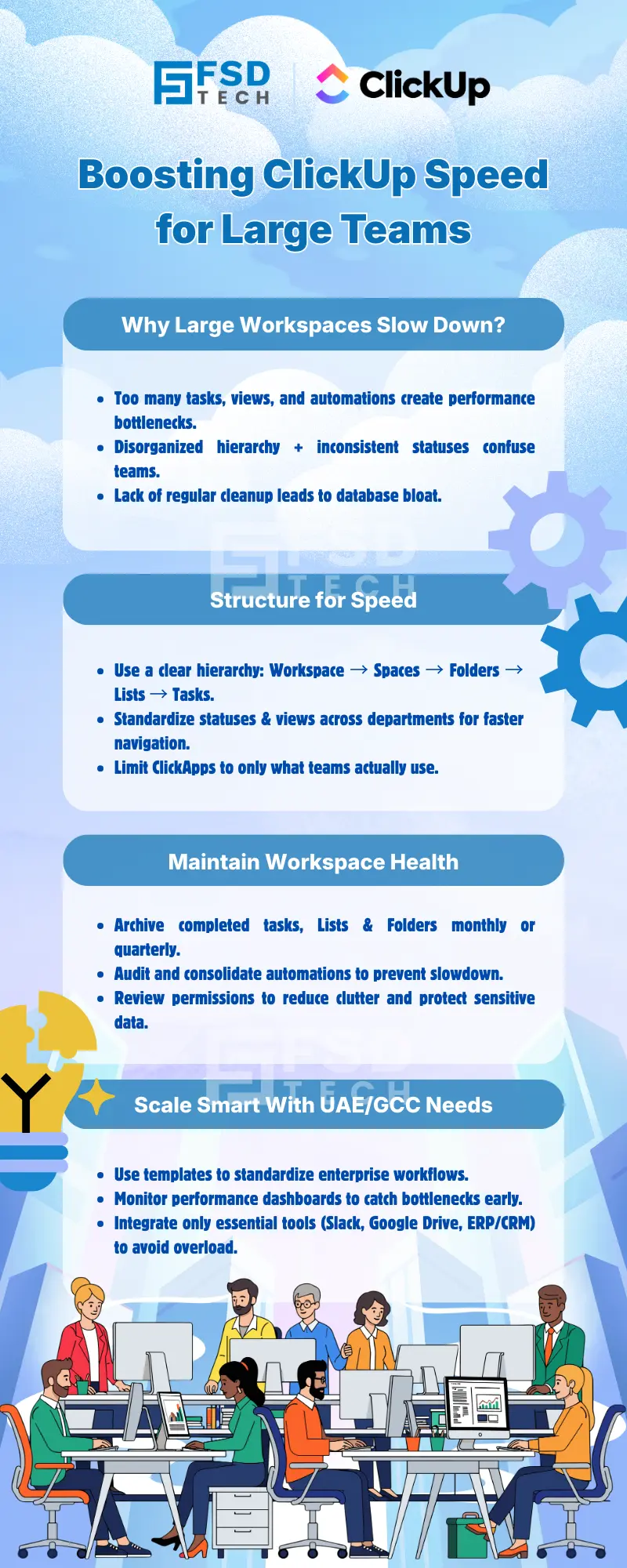
     

    Infographic on boosting ClickUp speed for large teams, highlighting workspace structure, automation cleanup, permission management, and best practices for scaling ClickUp efficiently across UAE and GCC enterprises.


    FAQ

    How often should we archive tasks and lists in a large ClickUp workspace?

    For large teams, a monthly or quarterly review and archive cycle is recommended. This routine prevents performance degradation and keeps the workspace responsive, especially in high-volume environments typical of UAE enterprises.


    Can too many automations slow down ClickUp?

    Yes, excessive or poorly configured automations can impact workspace speed. Regularly audit and consolidate automations to ensure ClickUp performance remains optimal, particularly as your team scales.


    What’s the best way to structure permissions in a large workspace?

    Use Spaces and Folders to segment teams or departments. Assign roles and permissions based on responsibility, and restrict access to sensitive data. This approach enhances security and reduces visual clutter for large UAE-based teams.


    How do we ensure new team members onboard quickly in a large workspace?

    Deploy standardized templates and proven workflows. This accelerates onboarding, maintains consistency, and reduces setup time for new hires across multiple departments.


    Are there specific ClickApps or integrations to avoid for performance?

    Only enable ClickApps and integrations essential to your workflows. Disable or remove unused features to reduce overhead and maintain workspace speed, especially in enterprise-scale ClickUp deployments.


    How can we monitor ClickUp workspace performance as our team grows?

    Leverage ClickUp’s dashboards and reporting tools to track task completion rates, automation usage, and user activity. Regular monitoring helps identify bottlenecks and supports proactive optimization.


    What’s the impact of archiving on data retrieval and reporting?

    Archived items are removed from active views but remain accessible for historical reporting. For compliance-driven UAE organizations, this ensures data is retained without compromising workspace speed.


    How do we prevent database bloat in ClickUp?

    Implement regular data hygiene practices: archive completed tasks, clean up unused Lists and Folders, and audit automations. These steps are critical for maintaining ClickUp performance in large-scale environments.


    Can ClickUp handle multi-departmental operations in a single workspace?

    Yes, ClickUp’s hierarchy supports complex, multi-departmental structures. By organizing Spaces and Folders by department and standardizing workflows, large UAE enterprises can centralize operations without sacrificing speed.


    How do integrations affect ClickUp workspace speed?

    Integrations add functionality but can introduce latency if overused. Limit integrations to those with clear business value, and periodically review them to ensure they support—not hinder—workspace performance.


    What are the best practices for automation cleanup in ClickUp?

    Audit automations quarterly, disable outdated rules, and consolidate similar triggers. Use automation logs to identify high-frequency automations that may impact performance, especially in high-volume UAE operations.


    How does ClickUp support compliance requirements in the GCC?

    ClickUp’s permission controls, audit trails, and data retention features help organizations meet GCC compliance standards. Regular archiving and access reviews further support regulatory requirements.


    Is it possible to customize ClickUp for regional workflows in the Middle East?

    Yes, ClickUp’s customizable hierarchy, statuses, and ClickApps allow organizations to tailor the platform to regional processes, terminology, and compliance needs common in the Middle East.


    How can we ensure efficient collaboration across distributed teams in ClickUp?

    Standardize workflows, use templates, and leverage integrations (like Slack or Zoom) to facilitate communication. Granular permissions ensure teams see only relevant data, supporting efficient collaboration across UAE and regional offices.


    What’s the recommended approach for scaling ClickUp in a fast-growing enterprise?

    Start with a clear hierarchy, standardize statuses and views, implement regular archiving and automation cleanup, and scale incrementally. Monitor performance and adjust configurations as your team expands to maintain workspace speed and efficiency.

    How to Boost ClickUp Workspace Speed and Efficiency for Large Teams

    About The Author

    NHAIF NOUSHAD

    Nhaif is an AI Automation Engineer & Business Analyst focused on ClickUp, AI, Automation, and Workflow Optimization. He helps businesses shift from scattered processes to streamlined, data-driven operations. With hands-on expertise, he simplifies complex tools into clear, easy-to-apply solutions.

    Like This Story?

    Share it with friends!

    Subscribe to our newsletter!

    Atera

    (48)

    Cato Networks

    (113)

    ClickUp

    (70)

    FishOS

    (7)

    Miradore

    (21)

    PointGuard AI

    (9)

    Vembu

    (22)

    Xcitium

    (33)

    ZETA HRMS

    (71)

    Workflow Automation(8)

    Workforce Automation(1)

    AI Project Management(1)

    HR Data Automation(1)

    RMM(1)

    IT Workflow Automation(1)

    IT security(2)

    GCC compliance(4)

    Payroll Integration(2)

    IT support automation(3)

    procurement automation(1)

    lost device management(1)

    IT Management(5)

    IoT Security(2)

    Cato XOps(2)

    IT compliance(4)

    Workflow Management(1)

    Task Automation(1)

    AI-powered cloud ops(1)

    Kubernetes lifecycle management(2)

    OpenStack automation(1)

    SMB Security(8)

    Data Security(1)

    MDR (Managed Detection & Response)(4)

    MSP Automation(3)

    Atera Integrations(2)

    XDR Security(2)

    Ransomware Defense(3)

    SMB Cyber Protection(1)

    HR Tech Solutions(1)

    Zero Trust Network Access(3)

    Zero Trust Security(2)

    Endpoint Management(1)

    SaaS Security(1)

    Payroll Automation(5)

    IT Monitoring(2)

    Xcitium EDR SOC(15)

    Ransomware Protection GCC(1)

    M&A IT Integration(1)

    Network Consolidation UAE(1)

    MSSP for SMBs(1)

    FSD-Tech MSSP(25)

    Antivirus vs EDR(1)

    Ransomware Protection(3)

    Managed EDR FSD-Tech(1)

    SMB Cybersecurity GCC(1)

    Cybersecurity GCC(12)

    Endpoint Security(1)

    Data Breach Costs(1)

    Endpoint Protection(1)

    Zero Dwell Containment(31)

    Managed Security Services(2)

    Xcitium EDR(30)

    SMB Cybersecurity(8)

    Cloud Backup(1)

    Hybrid Backup(1)

    Backup & Recovery(1)

    pointguard ai(4)

    backup myths(1)

    vembu(9)

    SMB data protection(9)

    disaster recovery myths(1)

    Vembu BDR Suite(19)

    Disaster Recovery(4)

    DataProtection(1)

    GCCBusiness(1)

    Secure Access Service Edge(4)

    GCC HR software(16)

    Miradore EMM(15)

    Cato SASE(7)

    Cloud Security(8)

    Talent Development(1)

    AI Cybersecurity(12)

    AI Security(2)

    AI Governance(4)

    AI Risk Management(1)

    AI Compliance(2)

    GCC business security(1)

    GCC network integration(1)

    compliance automation(4)

    education security(1)

    GCC cybersecurity(2)

    Miradore EMM Premium+(5)

    BYOD security Dubai(8)

    App management UAE(1)

    HealthcareSecurity(1)

    MiddleEast(1)

    Team Collaboration(1)

    IT automation(12)

    Zscaler(1)

    SD-WAN(6)

    HR Integration(4)

    Cloud Networking(3)

    device management(9)

    RemoteWork(1)

    ZeroTrust(2)

    VPN(1)

    MPLS(1)

    Project Management(9)

    HR automation(16)

    share your thoughts

    Illustration showing ClickUp as a central work management platform connected to dashboards, automations, security controls, and cross-functional teams to improve workspace performance and productivity at scale.

    How to Boost ClickUp Workspace Speed and Efficiency for Large Teams

    🕓 January 17, 2026

    Illustration of ClickUp integrated with Google Workspace tools like Gmail, Google Drive, Calendar, and Sheets, enabling real-time collaboration, task automation, secure access, and centralized workflows.

    Integrating ClickUp with Google Workspace for Streamlined Collaboration

    🕓 January 15, 2026

    Illustration showing ClickUp connected with Slack and Microsoft Teams, enabling real-time collaboration, automated task creation, secure workflows, and centralized communication for distributed teams.

    Using ClickUp with Slack & Teams: Real-Time Workflow Automation

    🕓 January 10, 2026

    Decoded(70)

    Cyber Security(112)

    BCP / DR(22)

    Zeta HRMS(70)

    SASE(21)

    Automation(70)

    Next Gen IT-Infra(113)

    Monitoring & Management(69)

    ITSM(22)

    HRMS(21)

    Automation(24)