.webp&w=3840&q=75)
How ClickUp Enables Outcome-Based Project Management (Not Just Task Tracking)
🕓 February 15, 2026
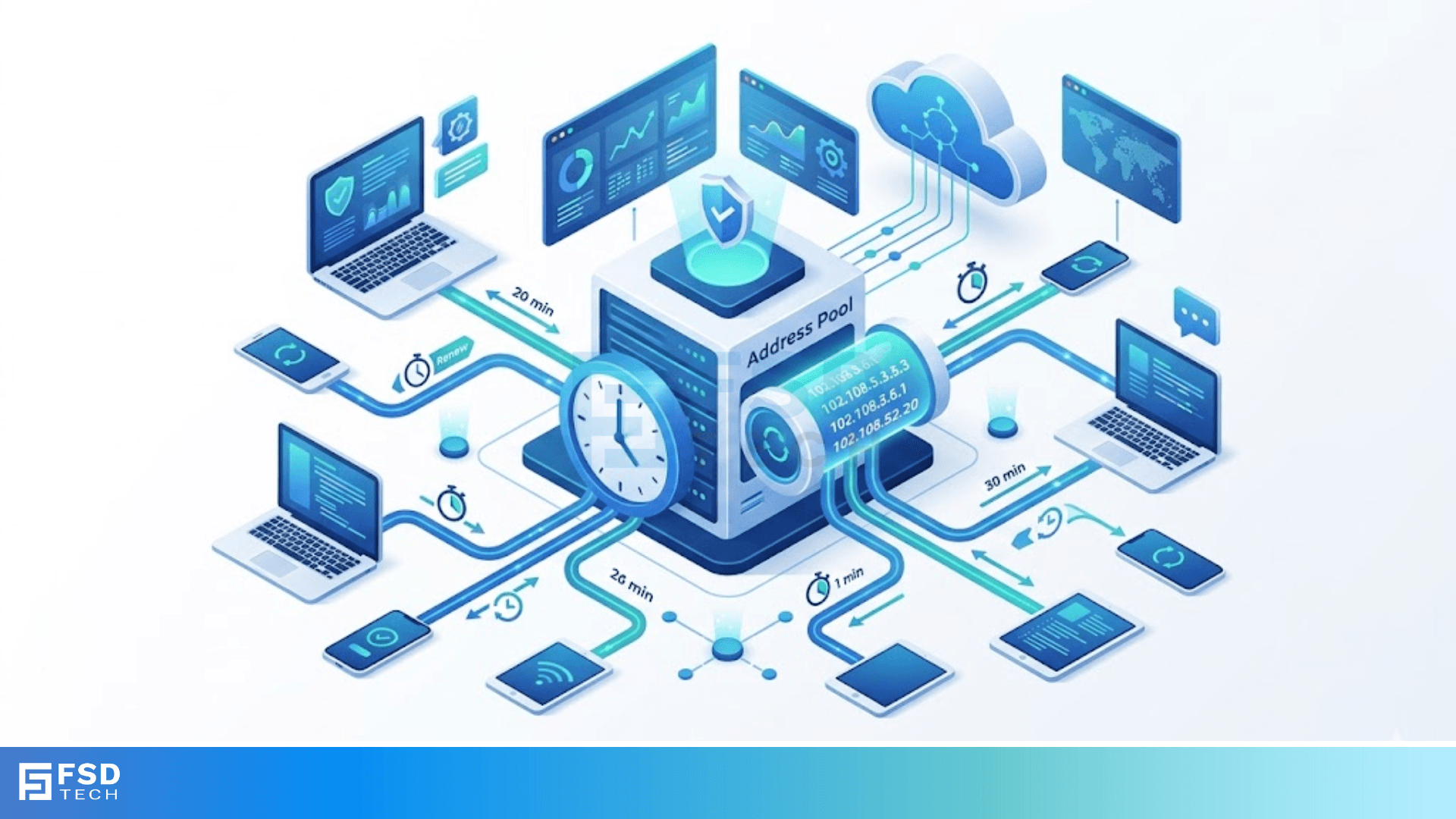
Have you ever wondered how your laptop or phone just "knows" how to connect to the Wi-Fi the moment you walk into a coffee shop? It feels like magic, but it is actually a hardworking system called the DHCP lease process doing the heavy lifting behind the scenes. Without it, you would have to manually type in long strings of numbers called IP addresses every single time you changed locations.
To be honest, the internet would be a massive headache without this automation. In my experience working with network setups, the Dynamic Host Configuration Protocol, or DHCP, is the unsung hero that keeps our digital lives moving. It manages how devices get their identities on a network. But it isn't just a "set it and forget it" thing; there is a specific four-step dance that happens in milliseconds.
In this guide, we'll break down exactly how your device borrows an address and why it eventually has to give it back.
Before we get into the technical gears, let’s look at the big picture. An Internet Protocol (IP) address is like a temporary mailing address for your computer. Since a network only has a limited number of these addresses, it can't just give them away forever. Instead, it "leases" them out.
Think of it like renting an apartment. You get a key and a place to stay for a set time. When the lease is up, you either renew it or move out so someone else can move in. In the networking world, the DHCP lease process ensures that addresses don't go to waste on devices that aren't even turned on anymore.
Imagine a busy airport Wi-Fi. Thousands of people connect and leave every hour. If the router gave every person a permanent address, it would run out of spots in minutes! By using a lease, the system can reclaim those addresses once people board their planes. We've all been there—frustrated by a "Limited Connectivity" message—and usually, a lease issue is the culprit.
The DHCP lease process is often called DORA. This isn't about the cartoon explorer; it stands for Discovery, Offer, Request, and Acknowledgment. This is the conversation your phone has with the router.
1. Discovery (The "Hello?")
When you turn on your Wi-Fi, your device doesn't have an address yet. It sends out a "DHCPDISCOVER" message. Because it doesn't know who the boss (the server) is, it shouts this message to every device on the network.
Technical Note: This is a broadcast message. It uses the MAC address of your hardware to say, "Hey, is there a DHCP server out there? I need an IP!"
2. Offer (The "I'm Here!")
The server hears the shout and looks at its list of available addresses. It picks one and sends back a "DHCPOFFER" message. This message contains the IP address the server is willing to lend, along with the lease duration and other details like the DNS settings.
3. Request (The "I'll Take It!")
Your device might actually receive offers from multiple servers if the network is large. It picks one (usually the first one it hears) and sends a "DHCPREQUEST" message. This tells the server, "I'd like to lease that address you offered, please." It also subtly tells other servers, "Thanks, but I found a spot."
4. Acknowledgment (The "You're Set!")
Finally, the server sends a "DHCPACK" (Acknowledgment). This is the final handshake. It confirms the lease is active and tells the device how long it can stay. At this point, your device is officially part of the network.
Also Read: Is MAC Address Filtering Still Relevant for Your Network Security?
You might wonder, how long is "temporary"? The DHCP lease process varies depending on the network type.
If a lease is too long, you run out of addresses. If it is too short, your network gets bogged down with devices constantly asking for renewals. It's a delicate balance!
The DHCP lease process doesn't just stop once you're connected. To prevent your internet from cutting out mid-video, your device tries to renew its "rent" early.
The 50% Mark (T1 Timer)
When half the lease time is gone, your device sends a request to the server to renew. If the server is awake, it says "Sure!" and resets the clock. You won't even notice this happening.
The 87.5% Mark (T2 Timer)
If the original server didn't answer at the 50% mark (maybe it crashed), your device waits until 87.5% of the time has passed. At this point, it gets a bit desperate and broadcasts a request to any available DHCP server on the network.
What happens if the lease actually hits 100% without a renewal? The device must stop using the IP address immediately and start the DHCP lease process all over again from the "Discovery" phase.
Even the best systems have hiccups. Here are a few reasons why your DHCP lease process might fail:
Since the DHCP lease process relies on "shouting" into the network, it can be vulnerable. A bad actor could set up a fake DHCP server. This is called "DHCP Spoofing."
If your device accepts an offer from a fake server, that server can redirect your internet traffic through its own system to steal your data. That is why modern network switches use something called "DHCP Snooping" to make sure only trusted servers can hand out addresses.
Also Read: Router Internetworking: How Data Finds Its Way?
The DHCP lease process is the backbone of modern networking. It allows us to move between homes, offices, and cafes without ever touching a settings menu. At our company, we believe in making technology feel effortless. We focus on building network solutions that are as reliable as they are invisible. We are dedicated to our clients' success by ensuring their infrastructure is always ready for what comes next.
Yes! This is called a Static IP. You can manually set this on your device or tell the DHCP server to always give your specific device the same address (this is called a DHCP Reservation).
Not really. The DHCP lease process only happens when you connect or when it's time to renew. It uses a tiny amount of data.
An IP address is the "number" your device uses. DHCP is the "system" that assigns that number to you.
Your IP changes because the lease expired or the router was restarted. Since it's a "dynamic" process, the server gives you whatever address is currently free.

Surbhi Suhane is an experienced digital marketing and content specialist with deep expertise in Getting Things Done (GTD) methodology and process automation. Adept at optimizing workflows and leveraging automation tools to enhance productivity and deliver impactful results in content creation and SEO optimization.
Share it with friends!



.webp&w=3840&q=75)
share your thoughts