HomeNext Gen IT-InfraMonitoring & ManagementCyber SecurityBCP / DRAutomationDecoded
Next Gen IT-Infra
Cato’s SASE Supports Cybersecurity Skills Development

How Cato’s SASE Supports Cybersecurity Skills Development

🕓 April 8, 2025

How SASE Supports the Security Needs of SMBs

How SASE Supports the Security Needs of SMBs

🕓 February 9, 2025

Attack Surface Reduction with Cato’s SASE

Attack Surface Reduction with Cato’s SASE

🕓 February 10, 2025

SASE for Digital Transformation in UAE

SASE for Digital Transformation in UAE

🕓 February 8, 2025

Monitoring & Management
Understanding Atera’s SLA Management

Understanding Atera’s SLA Management

🕓 February 7, 2025

Cost-Performance Ratio: Finding the Right Balance in IT Management Networks

Cost-Performance Ratio: Finding the Right Balance in IT Management Networks

🕓 June 16, 2025

Customizing Atera with APIs

Customizing Atera with APIs

🕓 March 3, 2025

Power Up Your IT Team’s Strategy with Atera’s Communication Tools

Power Up Your IT Team’s Strategy with Atera’s Communication Tools

🕓 February 8, 2025

Cyber Security
Visual guide showing Cato CMA interface for configuring Internet and WAN firewall rules, enabling threat protection, and monitoring security events in real time for UAE IT teams.

Enforcing Firewall and Threat Protection Policies in Cato

🕓 July 25, 2025

Isometric illustration of professionals managing network performance, bandwidth analytics, and cloud-based optimization around the Cato Networks platform, symbolizing bandwidth control and QoS visibility.

Mastering Bandwidth Control and QoS in Cato Networks

🕓 July 26, 2025

Illustration of the Cato Cloud architecture showing its role in delivering SASE for secure, optimized global connectivity.

Understanding the Cato Cloud and Its Role in SASE

🕓 January 29, 2025

Global network backbone powering Cato SASE solution for secure, high-performance connectivity across regions.

Global Backbone: The Engine Powering Cato’s SASE Solution

🕓 January 30, 2025

BCP / DR
Illustration showing diverse business and IT professionals collaborating with cloud, backup, and security icons, representing Vembu use cases for SMBs, MSPs, and IT teams.

Who Uses Vembu? Real-World Use Cases for SMBs, MSPs & IT Teams

🕓 July 12, 2025

Graphic showcasing Vembu’s all-in-one backup and disaster recovery platform with icons for cloud, data protection, and business continuity for IT teams and SMBs.

What Is Vembu? A Deep Dive Into the All in One Backup & Disaster Recovery Platform

🕓 July 6, 2025

Illustration showing Vembu backup and disaster recovery system with cloud storage, server racks, analytics dashboard, and IT professionals managing data.

The Rising Cost of Data Loss: Why Backup Is No Longer Optional?

🕓 August 14, 2025

3D isometric illustration of cloud backup and data recovery infrastructure with laptop, data center stack, and digital business icons — FSD Tech

RPO & RTO: The Heart of Business Continuity

🕓 August 15, 2025

Automation
Cross-Functional Collaboration with ClickUp

Fostering Cross-Functional Collaboration with ClickUp for Multi-Departmental Projects

🕓 February 11, 2025

ClickUp Project Reporting

Revolutionizing Enterprise Reporting with ClickUp’s Advanced Analytics and Dashboards

🕓 June 16, 2025

ClickUp’s Design Collaboration and Asset Management Tools

Empowering Creative Teams with ClickUp’s Design Collaboration and Asset Management Tools

🕓 February 26, 2025

ClickUp Communication and Collaboration Tools

ClickUp Communication and Collaboration Tools: Empowering Remote Teams

🕓 March 12, 2025

Decoded
Multi-Factor Authentication (MFA)

Multi-Factor Authentication (MFA): All You Need to Know

🕓 December 7, 2025

L3 Switch

What Is an L3 Switch? L2 vs L3 & Why You Need Layer 3?

🕓 December 8, 2025

IPSec

IPSec Explained: Protocols, Modes, IKE & VPN Security

🕓 December 3, 2025

 Datagram Transport Layer Security (DTLS)

What is Datagram Transport Layer Security (DTLS)? How it works?

🕓 December 4, 2025

    Subscribe to our newsletter!

    About Us

    Follow Us

    Copyright © 2024 | Powered by 

    Cato SASE Architecture

    Inside Cato’s SASE Architecture: A Blueprint for Modern Security

    🕓 January 26, 2025

    Enterprise Data Security and Privacy with ClickUp

    Ensuring Enterprise Data Security and Privacy with ClickUp

    🕓 February 9, 2025

    DDoS protection SASE

    DDoS Protection and Cato’s Defence Mechanisms

    🕓 February 11, 2025

    Table of Contents

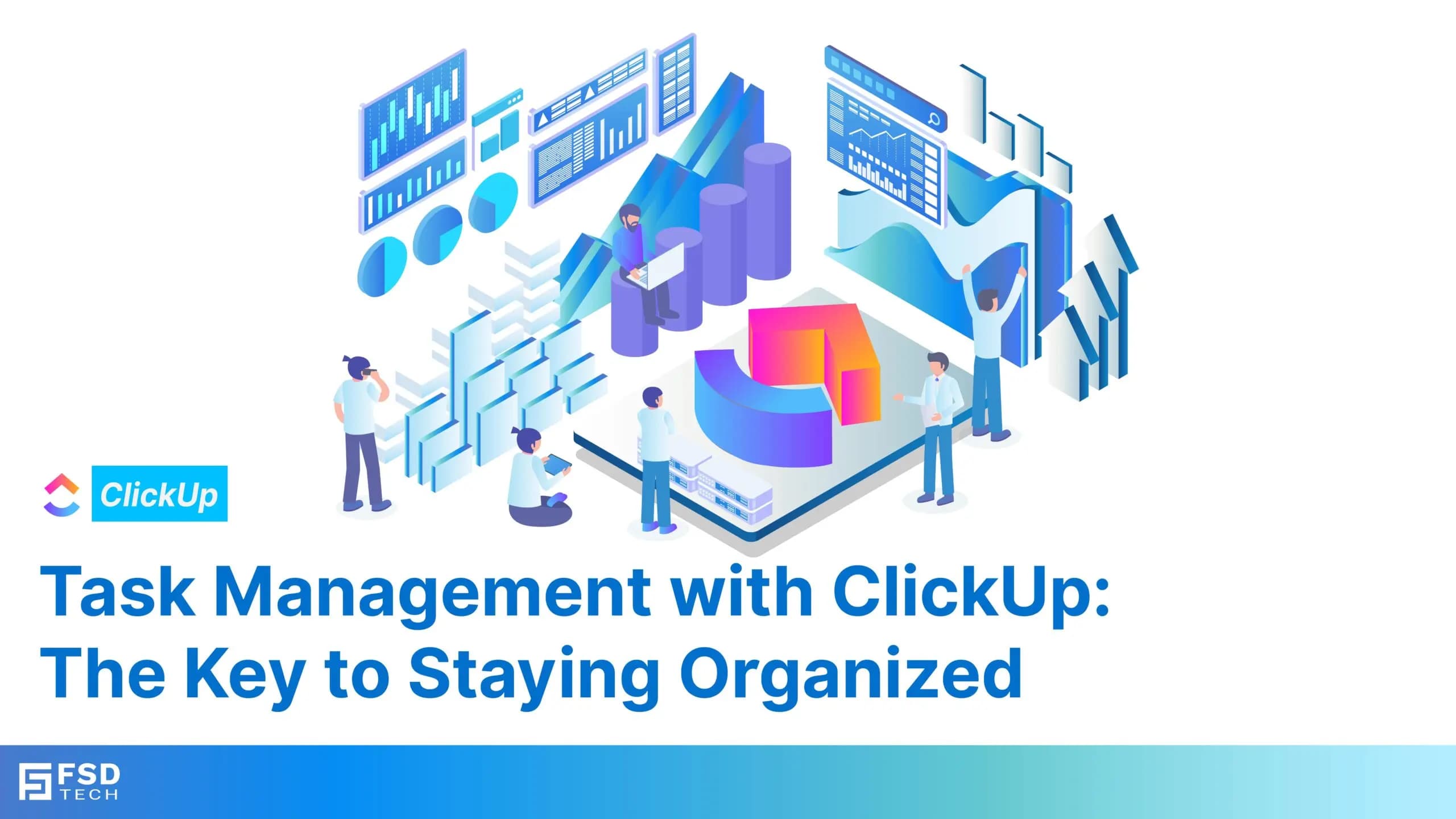
    Task Management with ClickUp: The Key to Staying Organized

    Anandhu Sivan
    January 27, 2025
    Comments
    Task Management with ClickUp: The Key to Staying Organized

    Introduction

    Effective task management is the backbone of any successful project. ClickUp offers powerful tools to help teams prioritize, assign, track, and organize tasks, ensuring that workflows are smooth and that deadlines are met consistently. Whether you’re handling a single task list or managing a multi-phase project, ClickUp’s task management features offer everything you need to keep organized and focused. Today, we’ll dive into ClickUp’s task management tools, exploring the best ways to assign tasks, manage deadlines, set priorities, and enhance overall team productivity.


    Core Task Management Features in ClickUp 

    1. Task Assignment: Clear Ownership and Accountability

    Assigning tasks to the right people is critical for maintaining accountability and transparency within a team. ClickUp allows you to assign tasks to individual team members or multiple people if a task requires collaborative effort. Clear task ownership keeps responsibilities defined and ensures that each task is managed effectively from start to finish.


    How to Use: Open a task, select “Assign,” and choose the relevant team member(s) to take charge of the task.

    Pro Tip: Use ClickUp’s “Watcher” feature to add stakeholders or team leads to monitor progress without assigning them direct responsibility, which helps them stay informed without increasing their workload.

    2. Prioritization Levels: Focus on What Matters Most

    ClickUp offers a prioritization system where tasks can be marked as Urgent, High, Normal, or Low. By setting priorities, teams can focus on tasks that align with their goals, ensuring critical work gets the attention it deserves while less urgent tasks are scheduled accordingly.


    How to Use: Within each task, click on the priority icon and choose the appropriate level to categorize the task based on its urgency.

    Pro Tip: In List view, sort tasks by priority to see the most pressing work at a glance. Teams can use priority levels to help structure daily workloads, ensuring no important tasks are overlooked.

    3. Due Dates and Start Dates: Stay on Schedule

    Assigning due dates keeps projects on track and sets clear expectations for task completion. ClickUp allows you to set both start dates and due dates for tasks, ensuring that tasks are scheduled from initiation to completion. This feature is especially helpful for tasks that require advance preparation or have dependencies.


    How to Use: Open a task and add start and due dates in the scheduling section. These dates will also appear in Calendar view for better visual tracking.

    Pro Tip: Teams can view tasks by due date in List or Calendar view to manage deadlines effectively, and enable reminders for tasks approaching their deadlines.

    4. Subtasks and Checklists: Breaking Down Complex Tasks

    Large projects can be daunting, but by breaking them down into smaller, manageable parts, ClickUp makes it easier to maintain progress and manage details. Subtasks work well for assigning specific parts of a larger task to team members, while checklists are useful for itemizing steps within a single task.


    How to Use: Within any task, click on “Add Subtask” to create a subtask with its own assignee, due date, and priority. For simpler itemization, use “Add Checklist” to outline smaller steps.

    Pro Tip: For collaborative projects, assign each subtask to different team members. This approach promotes teamwork while ensuring each part of the task is addressed systematically.

    5. Task Dependencies: Keeping Work in Order

    Task dependencies ensure that work flows in the correct order, preventing roadblocks in the process. By setting dependencies, you can indicate which tasks must be completed before others can begin, making it easy to coordinate complex workflows without delays.


    How to Use: In the task settings, use the dependency feature to set “Waiting on” or “Blocking” relationships between tasks.

    Pro Tip: Use Gantt view to visually map dependencies across your project timeline. Adjustments can be made directly in Gantt view to realign task timelines if there are changes to deadlines or delays.

    Get started with the fundamentals of Task management through ClickUp University: Task Management Essentials.


    Additional Task Management Tools in ClickUp

    Custom Fields for Enhanced Data Tracking

    Custom fields allow you to add specific information—such as budget, estimated hours, or client details—to tasks. This feature lets teams track data unique to their projects, which can be especially helpful for managing resources or tracking project specifications.


    How to Use: Open a task, click on “+ Add Custom Field,” and select the field type that fits your needs. Options include dropdowns, numbers, and text fields.

    Pro Tip: Use custom fields in Board or List views to organize tasks based on key metrics, making it easier to prioritize and monitor important details.

    Tags for Quick Categorization

    Tags allow you to label tasks with keywords for easy filtering. Common uses for tags include categorizing tasks by project type, client, or urgency. Tags make it easy to find and organize tasks based on specific criteria.


    How to Use: In the task settings, add tags that are relevant to the task, such as “Client Project,” “High Priority,” or “Team Collaboration.”

    Pro Tip: Use color-coded tags to visually differentiate tasks. For instance, marketing tasks could be tagged with green, while development tasks use blue, making it easy to locate projects at a glance.


    Best Practices for Task Organization in ClickUp

    Create Task Templates for Repetitive Work
    For tasks that follow a similar structure each time, save a task as a template. Task templates ensure that repetitive tasks are organized consistently and help teams avoid having to create similar tasks from scratch.


    Use Automation to Streamline Task Management
    ClickUp’s automation features allow you to set up rules that trigger specific actions, such as moving a task to “Done” when marked as complete. Automations save time by handling routine updates, ensuring tasks progress smoothly.


    Leverage Recurring Tasks for Ongoing Work
    For regular activities, such as weekly reports or monthly meetings, ClickUp’s recurring task feature allows these tasks to appear automatically based on a set frequency, helping teams stay on top of routine responsibilities.


    Use Templates Alongside Custom Fields and Tags
    Templates paired with custom fields and tags add another level of organization to tasks. Teams can assign relevant tags and fields to every task in a template, ensuring that tasks are categorized and detailed consistently across projects.


    Conclusion: Take Control of Task Management with ClickUp

    With ClickUp’s comprehensive task management tools, teams can keep work organized, meet deadlines, and manage priorities with ease. By using features like dependencies, priorities, and custom fields, ClickUp allows for detailed task tracking and smooth project execution.
     

    In tomorrow’s post, we’ll explore ClickUp’s tools for remote team collaboration, offering the best practices to keep distributed teams aligned. Stay tuned!


    FAQs

    What is task management in ClickUp?

    Task management in ClickUp involves creating, assigning, prioritizing, and tracking tasks to ensure projects are completed efficiently. It’s the foundation of staying organized and meeting deadlines.


    How do I create a task in ClickUp?

    • To create a task:
    • Navigate to the desired Space, Folder, or List.
    • Click the “+ New Task” button.
    • Enter the task name, description, and any relevant details like due dates or assignees.


    What are task statuses in ClickUp?

    Task statuses define the progress of a task. Examples include “To Do,” “In Progress,” and “Complete.” You can customize statuses to fit your workflow.


    Can I assign tasks to multiple people?

    Yes, you can assign a task to multiple team members for shared responsibilities. Alternatively, use subtasks to break down individual roles.


    What are subtasks, and how do they work?

    Subtasks are smaller tasks within a parent task. They help break down complex tasks into manageable steps and can be assigned to different team members with individual deadlines.


    How do I prioritize tasks in ClickUp?

    ClickUp allows you to set priorities (e.g., Urgent, High, Normal, Low) for each task. Use the Priority feature to focus on what’s most important.


    What is the difference between recurring tasks and templates?

    • Recurring Tasks: Automatically regenerate tasks on a defined schedule (e.g., daily, weekly).
    • Task Templates: Standardized task structures used to create similar tasks repeatedly..


    Can I use ClickUp to set reminders for tasks?

    Yes, ClickUp offers reminders through notifications, which can be set for upcoming deadlines, comments, or task updates.


    How can I track task deadlines effectively?

    • Use Calendar Viewto visualize deadlines.
    • Enable due date notifications.
    • Track overdue tasks in Dashboards or “My Work” views.


    What is the “My Work” section in ClickUp?

    “My Work” is a personalized dashboard showing all tasks assigned to you across Spaces, Folders, and Lists. It’s a centralized way to manage your workload.


    How do I organize tasks for better visibility?

    • Use Custom Fieldsto add details like task type or budget.
    • Group tasks by assignee, priority, or status.
    • Filter tasks to view only relevant items.


    What are dependencies in ClickUp tasks?

    Dependencies define the relationship between tasks. For example, Task B can’t start until Task A is completed. They help avoid bottlenecks and streamline workflows.


    How do I use ClickUp Automations for task management?

    Automations can be set to:

    • Assign tasks when created.
    • Update statuses when conditions are met.
    • Notify team members of changes automatically.


    Can I attach files and documents to tasks?

    Yes, you can upload files or link documents to tasks for easy access and collaboration.


    What are task watchers, and why are they useful?

    Watchers are team members who receive notifications about a task’s updates, even if they aren’t assigned to it. This keeps relevant stakeholders informed.


    Task Management with ClickUp: The Key to Staying Organized

    About The Author

    Anandhu Sivan

    Anandhu holds a Master's degree in Computer Science and brings extensive expertise in Business Analysis and Project Management, delivering innovative solutions and driving success across diverse projects.

    Like This Story?

    Share it with friends!

    Subscribe to our newsletter!

    Atera

    (48)

    Cato Networks

    (111)

    ClickUp

    (65)

    FishOS

    (7)

    Miradore

    (21)

    PointGuard AI

    (9)

    Vembu

    (22)

    Xcitium

    (33)

    ZETA HRMS

    (67)

    Workflow Automation(5)

    Workforce Automation(1)

    AI Project Management(1)

    HR Data Automation(1)

    RMM(1)

    IT Workflow Automation(1)

    IT security(2)

    GCC compliance(4)

    Payroll Integration(2)

    IT support automation(3)

    procurement automation(1)

    lost device management(1)

    IT Management(5)

    IoT Security(2)

    Cato XOps(2)

    IT compliance(4)

    Task Automation(1)

    Workflow Management(1)

    OpenStack automation(1)

    Kubernetes lifecycle management(2)

    AI-powered cloud ops(1)

    SMB Security(8)

    Data Security(1)

    MDR (Managed Detection & Response)(4)

    Atera Integrations(2)

    MSP Automation(3)

    XDR Security(2)

    SMB Cyber Protection(1)

    Ransomware Defense(3)

    HR Tech Solutions(1)

    Zero Trust Network Access(3)

    Zero Trust Security(2)

    Endpoint Management(1)

    SaaS Security(1)

    Payroll Automation(5)

    IT Monitoring(2)

    Xcitium EDR SOC(15)

    Ransomware Protection GCC(1)

    M&A IT Integration(1)

    Network Consolidation UAE(1)

    MSSP for SMBs(1)

    FSD-Tech MSSP(25)

    SMB Cybersecurity GCC(1)

    Managed EDR FSD-Tech(1)

    Ransomware Protection(3)

    Antivirus vs EDR(1)

    Cybersecurity GCC(12)

    Endpoint Security(1)

    Endpoint Protection(1)

    Data Breach Costs(1)

    Managed Security Services(2)

    SMB Cybersecurity(8)

    Zero Dwell Containment(31)

    Xcitium EDR(30)

    Cloud Backup(1)

    Hybrid Backup(1)

    Backup & Recovery(1)

    pointguard ai(4)

    disaster recovery myths(1)

    backup myths(1)

    vembu(9)

    SMB data protection(9)

    Vembu BDR Suite(19)

    Disaster Recovery(4)

    DataProtection(1)

    GCCBusiness(1)

    Secure Access Service Edge(4)

    GCC HR software(15)

    Miradore EMM(15)

    Cato SASE(7)

    Cloud Security(8)

    Talent Development(1)

    AI Cybersecurity(12)

    AI Risk Management(1)

    AI Governance(4)

    AI Security(2)

    AI Compliance(2)

    GCC business security(1)

    GCC network integration(1)

    compliance automation(4)

    GCC cybersecurity(2)

    education security(1)

    App management UAE(1)

    BYOD security Dubai(8)

    Miradore EMM Premium+(5)

    HealthcareSecurity(1)

    MiddleEast(1)

    Team Collaboration(1)

    IT automation(10)

    Zscaler(1)

    SD-WAN(6)

    HR Integration(4)

    Cloud Networking(3)

    device management(9)

    RemoteWork(1)

    ZeroTrust(2)

    VPN(1)

    MPLS(1)

    Project Management(9)

    HR automation(16)

    share your thoughts

    Isometric illustration representing ClickUp integration with multiple business tools, showing connected dashboards, workflows, analytics, and team collaboration to enable unified CRM and project management for UAE organizations.

    Integrating ClickUp with HubSpot & Salesforce: CRM Workflows for UAE Businesses

    🕓 December 31, 2025

    Illustration of ClickUp construction project management platform connecting multiple Dubai construction sites with real-time dashboards, scheduling, contractor workflows, document control, and enterprise collaboration.

    ClickUp for Construction Project Management in Dubai

    🕓 December 29, 2025

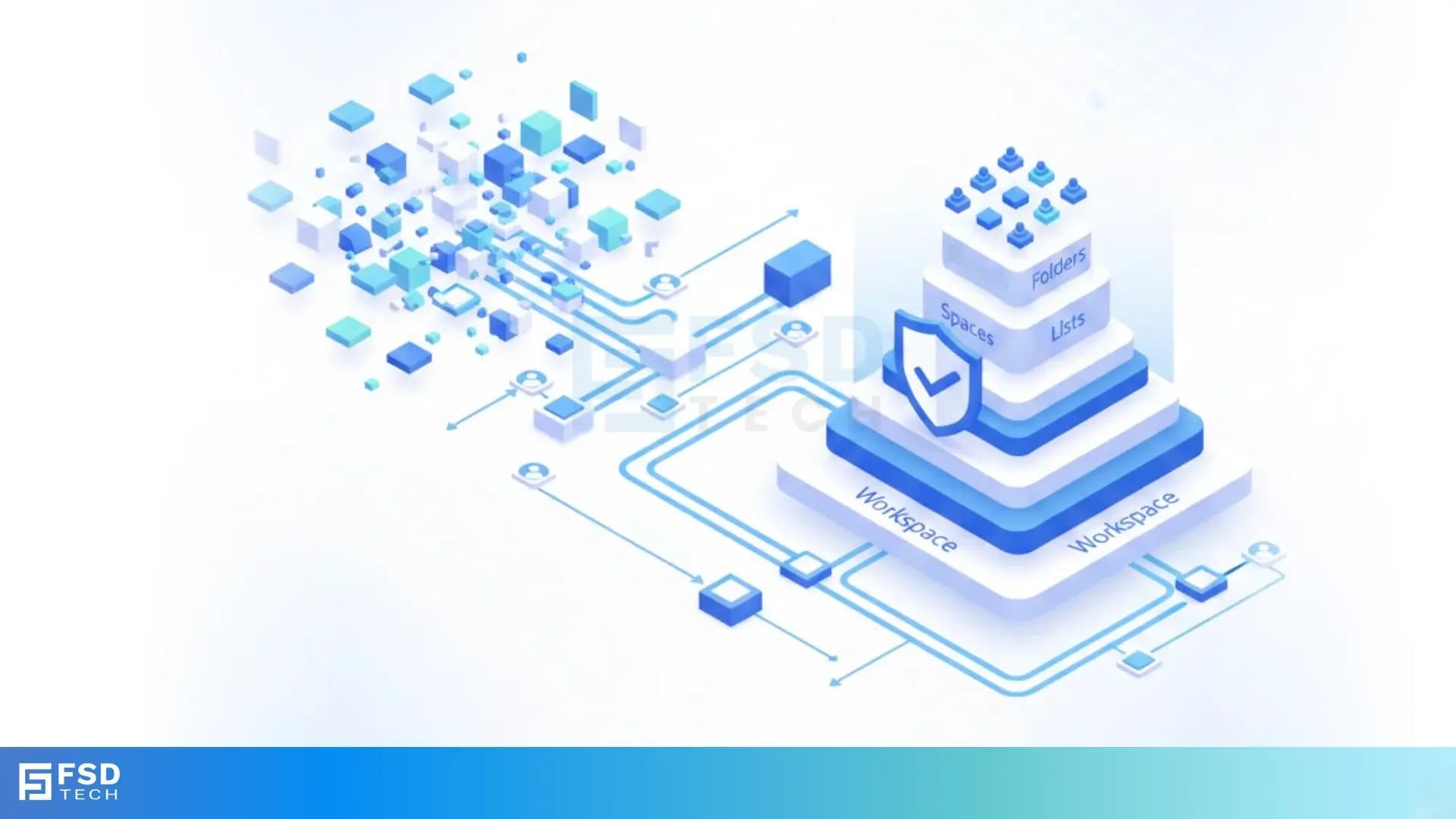
    Illustration showing the transition from manual spreadsheets and paper-based HR processes to the Zeta HRMS digital platform. Depicts HR teams moving data into a centralized, automated HR system with modules for payroll, attendance, compliance, and employee management, highlighting improved efficiency and collaboration. FSD Tech branding visible at the bottom.

    Legal Teams & Case Management in ClickUp Workspaces

    🕓 December 25, 2025

    Decoded(45)

    Cyber Security(112)

    BCP / DR(22)

    Zeta HRMS(66)

    SASE(21)

    Automation(65)

    Next Gen IT-Infra(111)

    Monitoring & Management(69)

    ITSM(22)

    HRMS(21)

    Automation(24)